# Welcome to SLUSD!

# Original SLUSD Tech Help Articles

## [Explore SLUSD Technology Help](https://techhelp.slusd.us/shelves)

This wiki is a growing collection of our latest help articles, but you may find some of our older material helpful as we transition to this new platform. Here is a list of some of those resources for you:

[New Teacher Onboarding](https://sites.google.com/slusd.us/ithelp/new-teacher-start-of-year?authuser=0)

[SLUSD Tech Portal / Chromebook Repair System](https://techcheckout.slusd.us/index.php/reports/repair_device_landing)

- - - - - -

Legacy Help Articles

- [SLUSD Technology Help](https://sites.google.com/slusd.us/ithelp/home)
- [August 2024 Start of Year Tech Help](https://sites.google.com/slusd.us/ithelp/aug-21-start-of-year)
- [Promethean Board References](https://docs.google.com/document/d/1ZaXcNSUFup96F13OuVgXFTziA_mCrgKR1VLAcqC-oRw/edit?usp=sharing)
- [Setting up a new Mac](https://sites.google.com/slusd.us/ithelp/tech-support/setting-up-your-new-mac)
- [Desk Phone Help](https://sites.google.com/slusd.us/ithelp/tech-support/new-desk-phones)
- [IPEVO Doc Cam Help](https://sites.google.com/slusd.us/ithelp/tech-support/software/ipevo-doc-cam)
- [Blended Platforms List for Primary &amp; Secondary](https://docs.google.com/document/d/1ZSdlvzc-DF4Ls69zqoj8o9HMEV_jf4WA0hMmB71F7z0/edit?usp=sharing)
    - [ELLevation Teacher Introduction](https://docs.google.com/document/d/1xHuXEUiAyWbteJAwp0aEcL2UBv6okjPQCBstuzD5XuI/edit?usp=sharing)
    - [Ellevation: Info on your EL students.webm](https://drive.google.com/file/d/1uknLL2_GF2CCJ64GLkU9CQj8lM-cXp3v/view?usp=sharing)
    - [Secondary: Schoology](https://docs.google.com/document/d/1Kqnn5u4LkiUPQEt6lTZ3-iAIsZzlajJjsVHi-JOvd6A/edit?usp=sharing)
- [Self Paced Online Learning](https://sites.google.com/slusd.us/day-of-care-collaboration/home)# Logging In


# Logging in to the Tech Help Website

<p class="callout info">If it is your first time logging in, sign up for an account by [following the steps found here](https://techhelp.slusd.us/books/welcome-to-slusd/page/logging-in-to-the-tech-help-website#bkmrk-signing-up-for-an-ac).</p>

## Logging in

1. If you already have signed up for an account click the Log In button in the upper right corner of the screen.[![image-1648655682080.png](https://techhelp.slusd.us/uploads/images/gallery/2022-03/scaled-1680-/14gJ6mNUS6pzR94j-image-1648655682080.png)](https://techhelp.slusd.us/uploads/images/gallery/2022-03/14gJ6mNUS6pzR94j-image-1648655682080.png)

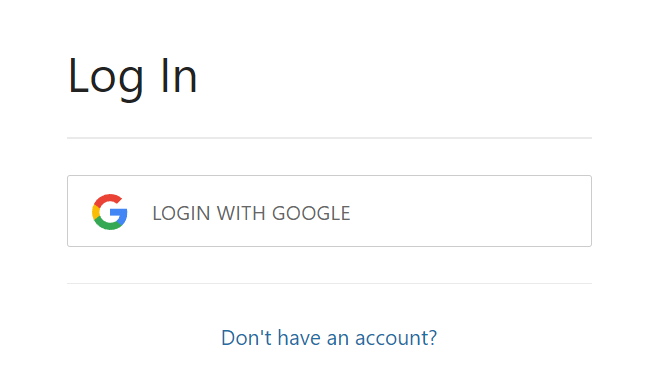
2. Click Login With Google. [![image-1648655719903.png](https://techhelp.slusd.us/uploads/images/gallery/2022-03/scaled-1680-/JM1CphBF6KK9NNih-image-1648655719903.png)](https://techhelp.slusd.us/uploads/images/gallery/2022-03/JM1CphBF6KK9NNih-image-1648655719903.png)
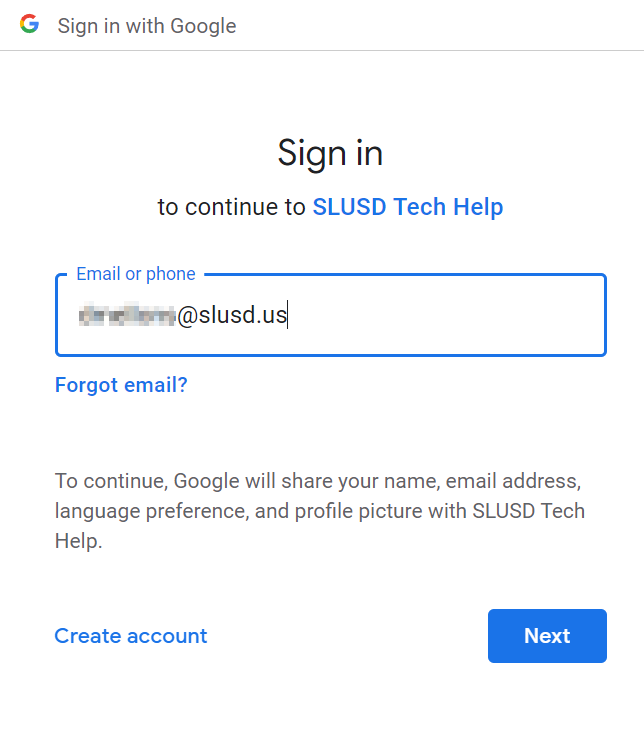
3. Sign in using your full @slusd.us email address and password. [![image-1648655850626.png](https://techhelp.slusd.us/uploads/images/gallery/2022-03/scaled-1680-/AZHoVfnGsnUDOh91-image-1648655850626.png)](https://techhelp.slusd.us/uploads/images/gallery/2022-03/AZHoVfnGsnUDOh91-image-1648655850626.png)
4. You are now be logged in!

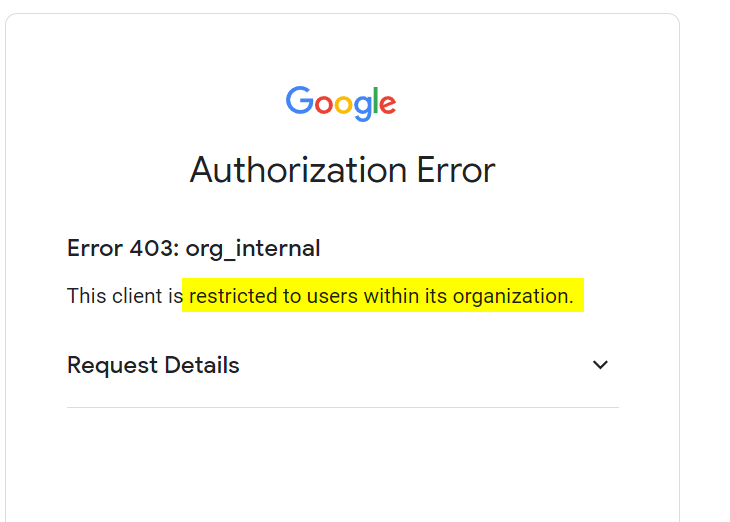
<p class="callout warning">If you are having trouble logging in please double-check you are signed in with your @slusd.us google account. Other accounts that end in @gmail.com, @yahoo.com or other websites will not work</p>

##   


##   


## Signing up for an account

From the main techhelp.slusd.us website click Sign Up in the upper right-hand corner.

1. Click the Sign up With Google button[![image-1648658397416.png](https://techhelp.slusd.us/uploads/images/gallery/2022-03/scaled-1680-/4nzSWJhZe3QFQhHJ-image-1648658397416.png)](https://techhelp.slusd.us/uploads/images/gallery/2022-03/4nzSWJhZe3QFQhHJ-image-1648658397416.png)

2. Sign in using your full @slusd.us email address and password. [![image-1648655850626.png](https://techhelp.slusd.us/uploads/images/gallery/2022-03/scaled-1680-/AZHoVfnGsnUDOh91-image-1648655850626.png)](https://techhelp.slusd.us/uploads/images/gallery/2022-03/AZHoVfnGsnUDOh91-image-1648655850626.png)

<p class="callout warning">If you are having trouble logging in please double-check you are signed in with your @slusd.us google account. Other accounts that end in @gmail.com, @yahoo.com or other websites will not work[![image-1648658605474.png](https://techhelp.slusd.us/uploads/images/gallery/2022-03/scaled-1680-/CTI2hEc6B2i8FHMq-image-1648658605474.png)](https://techhelp.slusd.us/uploads/images/gallery/2022-03/CTI2hEc6B2i8FHMq-image-1648658605474.png)</p>
# Logging in to Clever


# Changing your @slusd.us account password

<p class="callout info">It is recommended that all SLUSD students and staff change their @slusd.us account default password provided to them after the first time logging in to their email.</p>

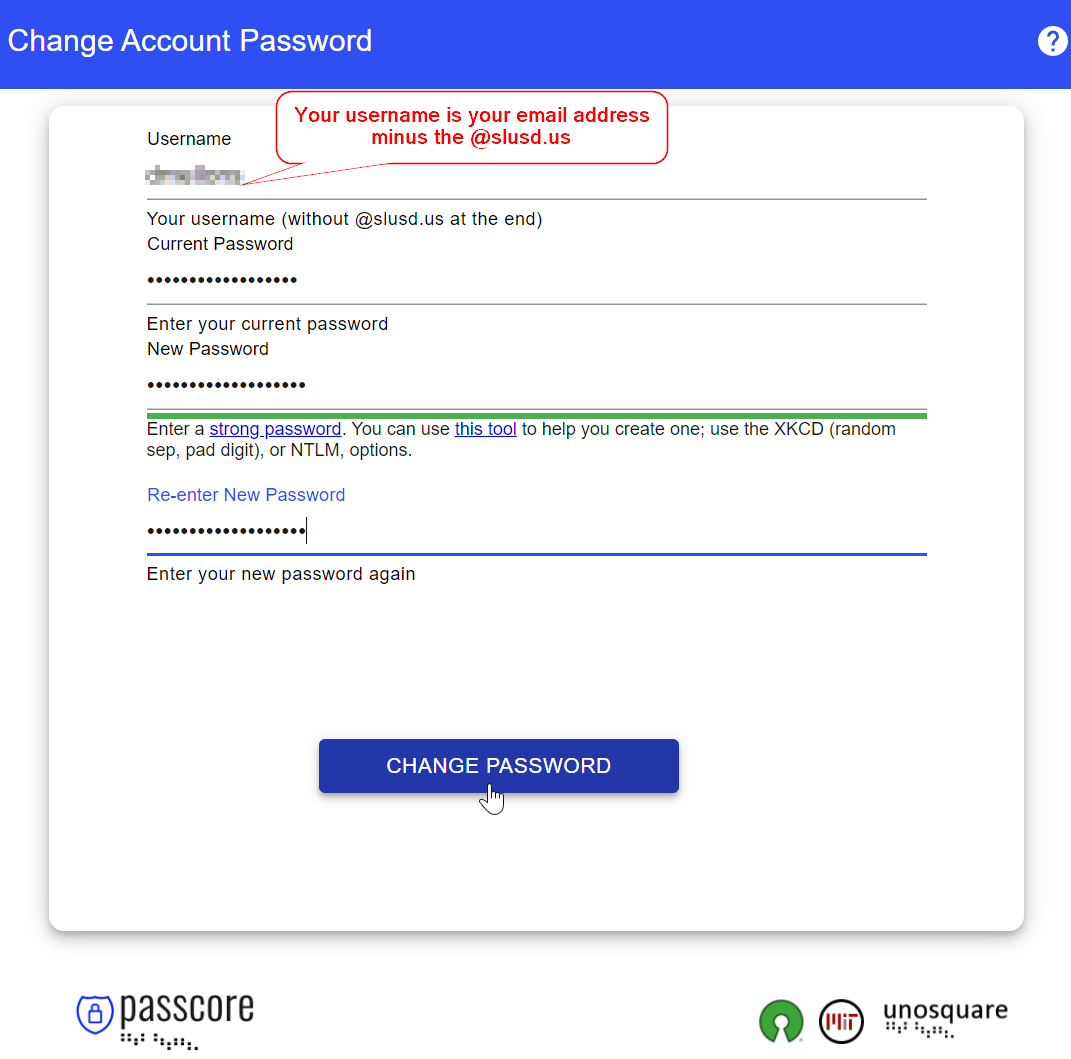
1. Go to [resetpw.slusd.us ](https://techhelp.slusd.us/resetpw.slusd.us)
2. Once there fill out the form with your account username, current password and your new password. Then click "Change Password"

[![image-1648659648845.png](https://techhelp.slusd.us/uploads/images/gallery/2022-03/scaled-1680-/zoreyGcpSWWsPgYV-image-1648659648845.png)](https://techhelp.slusd.us/uploads/images/gallery/2022-03/zoreyGcpSWWsPgYV-image-1648659648845.png)