# Viewsonic Interactive Boards
# Turn Off Power Save mode
1. Click on Settings
[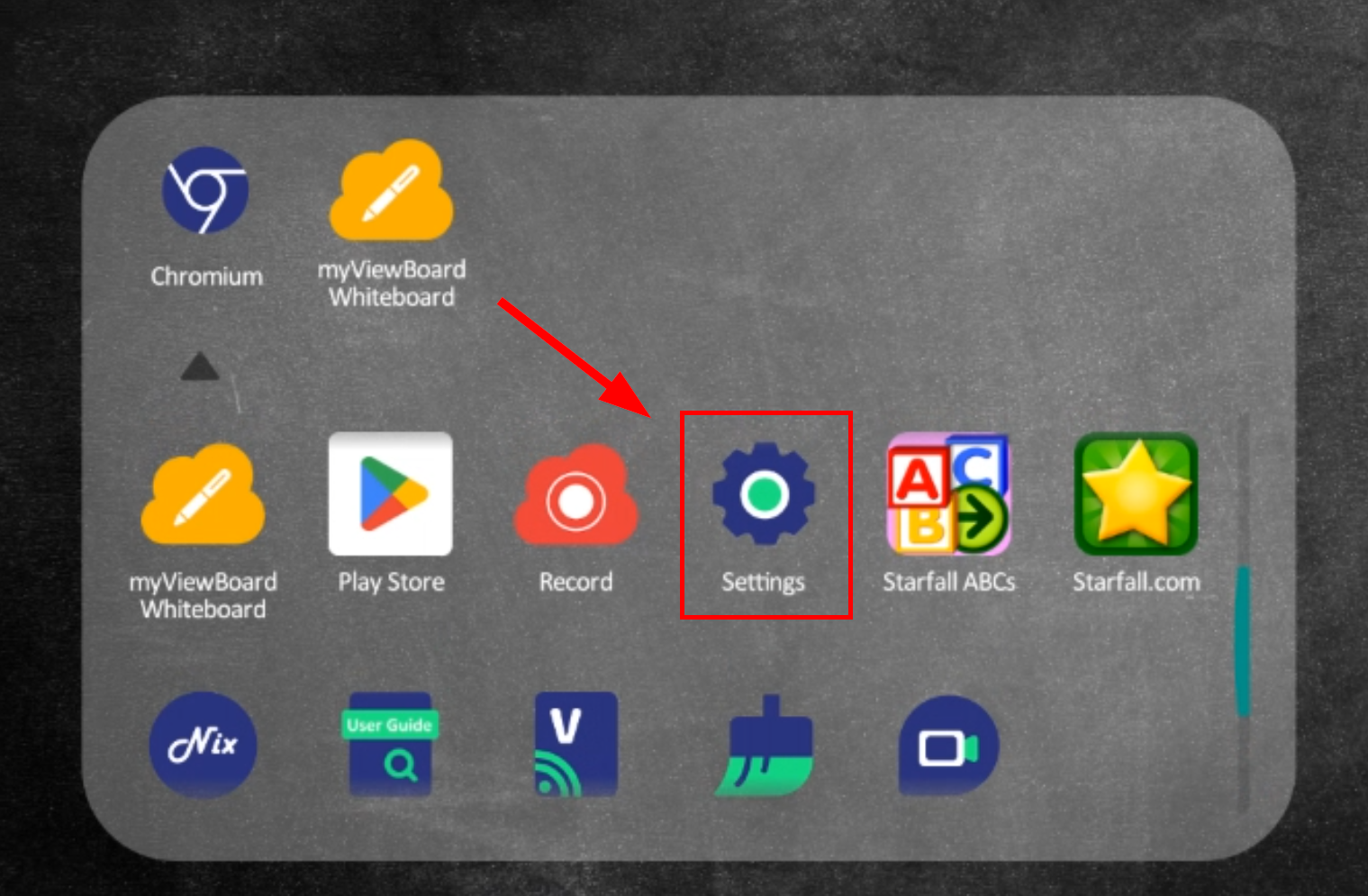](https://techhelp.slusd.us/uploads/images/gallery/2023-05/TWpOFUv9VyirX2ap-image-1683322954732.png)
2. Preferences - Startup & Shutdown
[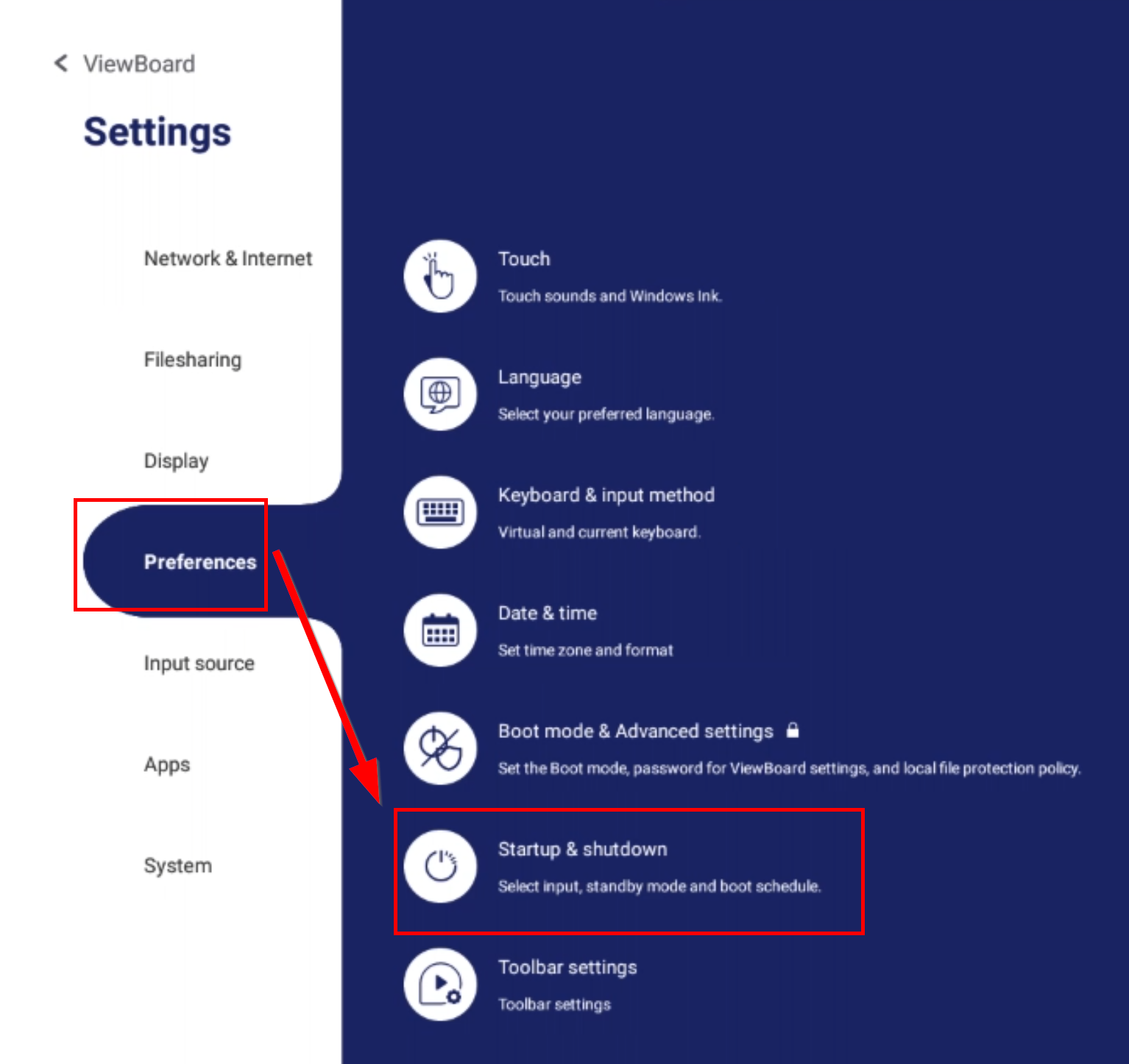](https://techhelp.slusd.us/uploads/images/gallery/2023-05/g8dyxt62UEMjMXx0-image-1683323035815.png)
3. Toggle off "Energy Star"
[](https://techhelp.slusd.us/uploads/images/gallery/2023-05/h6RPtn2ucfRz8RJo-image-1683323078548.png)# Using Whiteboard App with Google Drive
## Linking your Google drive with Viewsonic Whiteboard
1. Go to **[https://myviewboard.com/signin ](https://myviewboard.com/signin)**to link your Google Account to ViewSonic with your Macbook\\PC
2. Click on Sign in with Google
[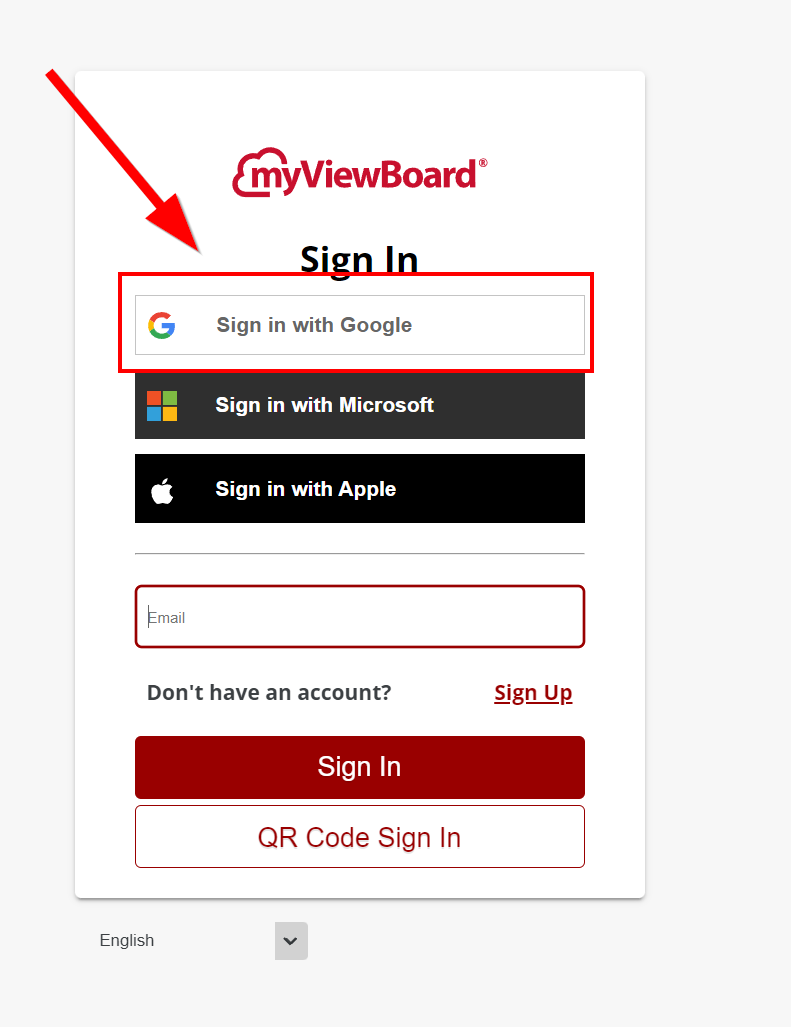](https://techhelp.slusd.us/uploads/images/gallery/2023-04/KjlHjtXJxm0iJ0iA-image-1680882839629.png)
3. Accept users agreement by checking the agree box, then Confirm
[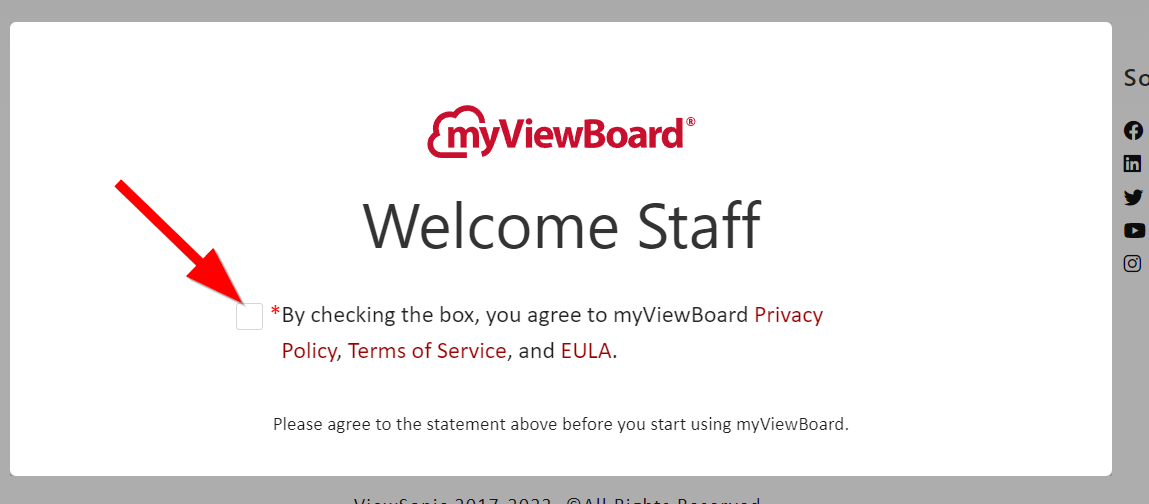](https://techhelp.slusd.us/uploads/images/gallery/2023-04/QnyXT3awngLN5rOm-image-1680882887722.png)
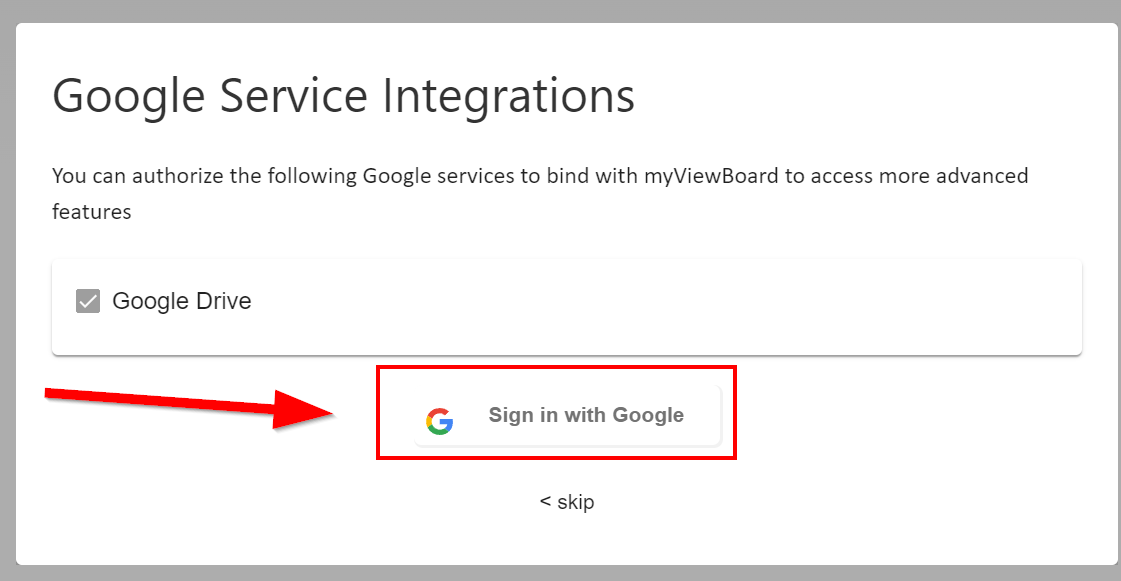
4. Click Sign in with Google, on the Google Service Integration window.
[](https://techhelp.slusd.us/uploads/images/gallery/2023-04/sG2jY23B0sdCHLSK-image-1680882914577.png)
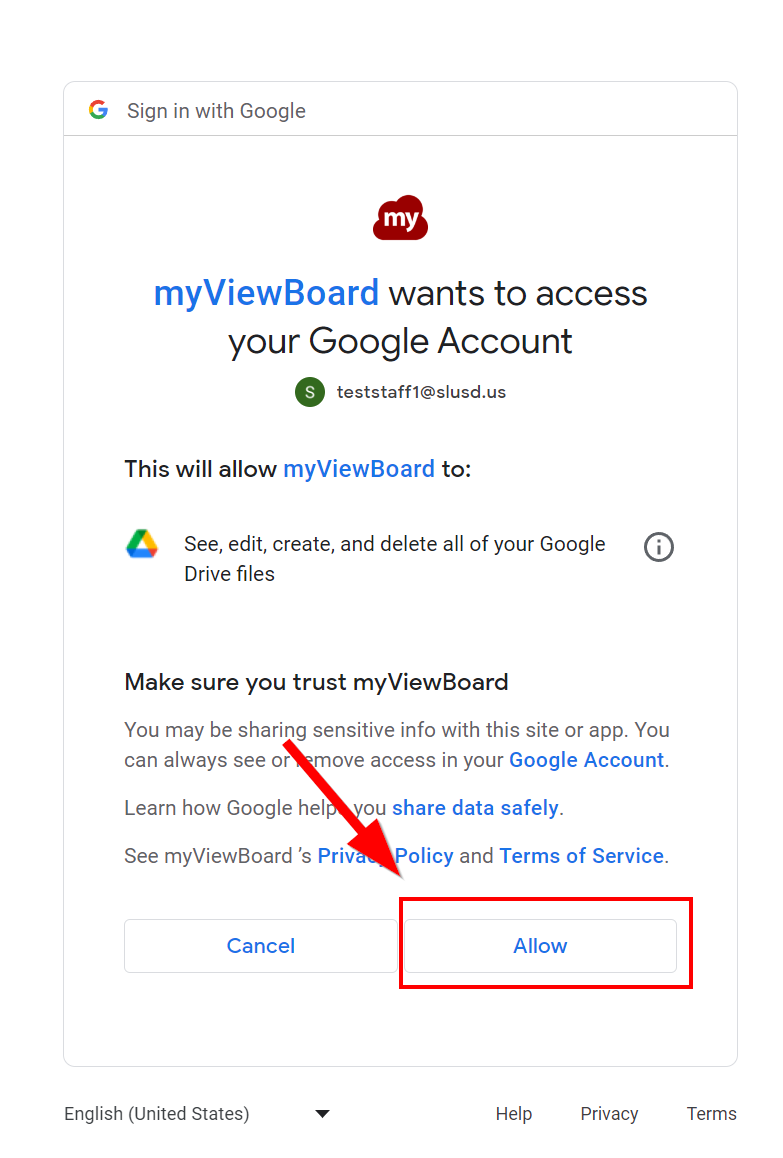
5. Click Allow, to allow ViewVonic access to your Google Drive.
[](https://techhelp.slusd.us/uploads/images/gallery/2023-04/tMyy0grMYHKExL2y-image-1680882948988.png)
6. Pick your Role as a Teacher
## Log into Whiteboard with your Google Drive
1. Launch **MyViewBoard Whiteboard**
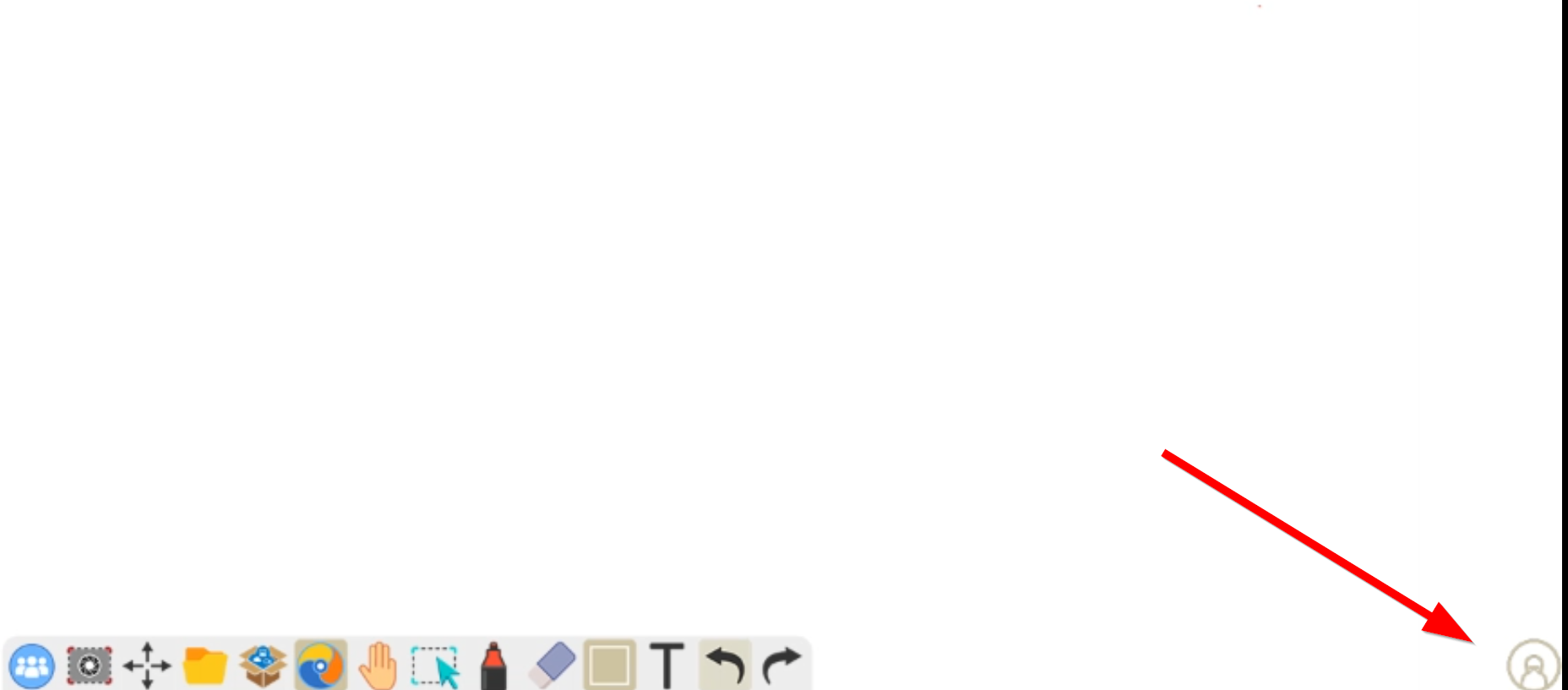
2. Click on the silhouette icon in the lower right corner
[](https://techhelp.slusd.us/uploads/images/gallery/2023-04/DvYVUwXAimzbwtHj-image-1680883098278.png)
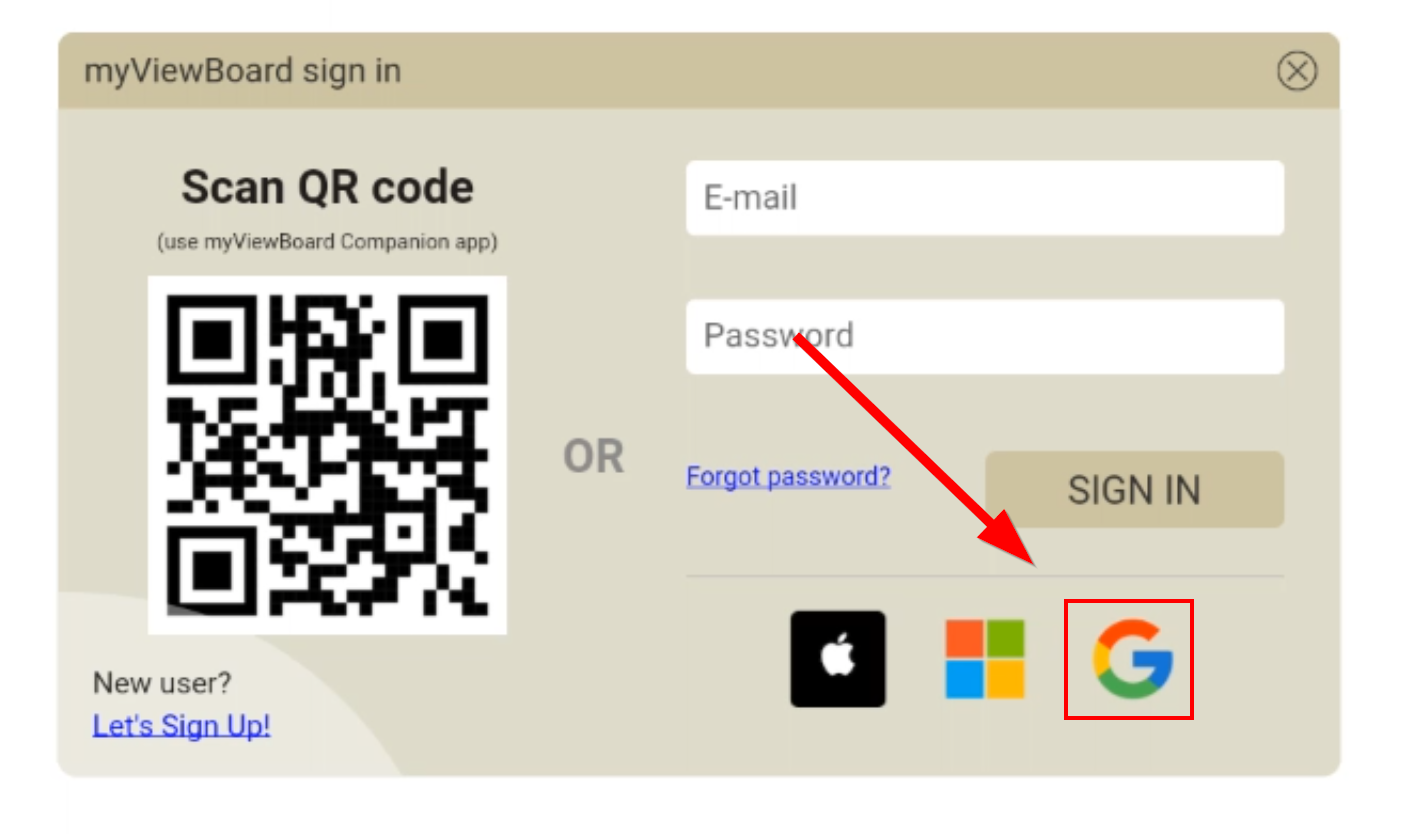
3. Click the Google icon
[](https://techhelp.slusd.us/uploads/images/gallery/2023-04/OseyYtnlL1BvVPIC-image-1680883135189.png)
4. Log in with your District Google account
## Opening Google Drive files in the Whiteboard App
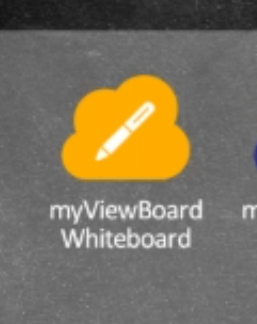
1. Launch Whiteboard App
[](https://techhelp.slusd.us/uploads/images/gallery/2023-04/LCYca7aPQU2gqMnQ-image-1680883245165.png)# How to AirMirror from Macbook
## How to AirMirror from Macbook
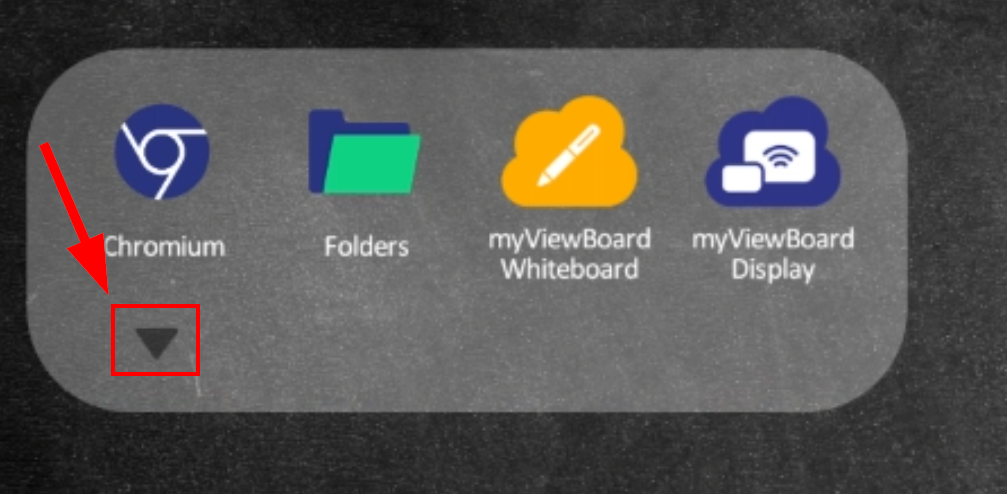
1. Click on the **upside-down Triangle** to expand Apps menus
[](https://techhelp.slusd.us/uploads/images/gallery/2023-03/nbQgwMYzcGzuw2Rj-image-1680194003950.png)
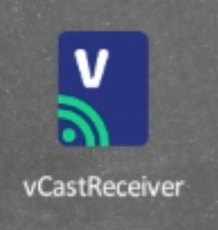
2. Scroll Down to **vCastReceiver** and tap to open
[](https://techhelp.slusd.us/uploads/images/gallery/2023-03/oxC0zcqqKxt4an60-image-1680194096117.png)
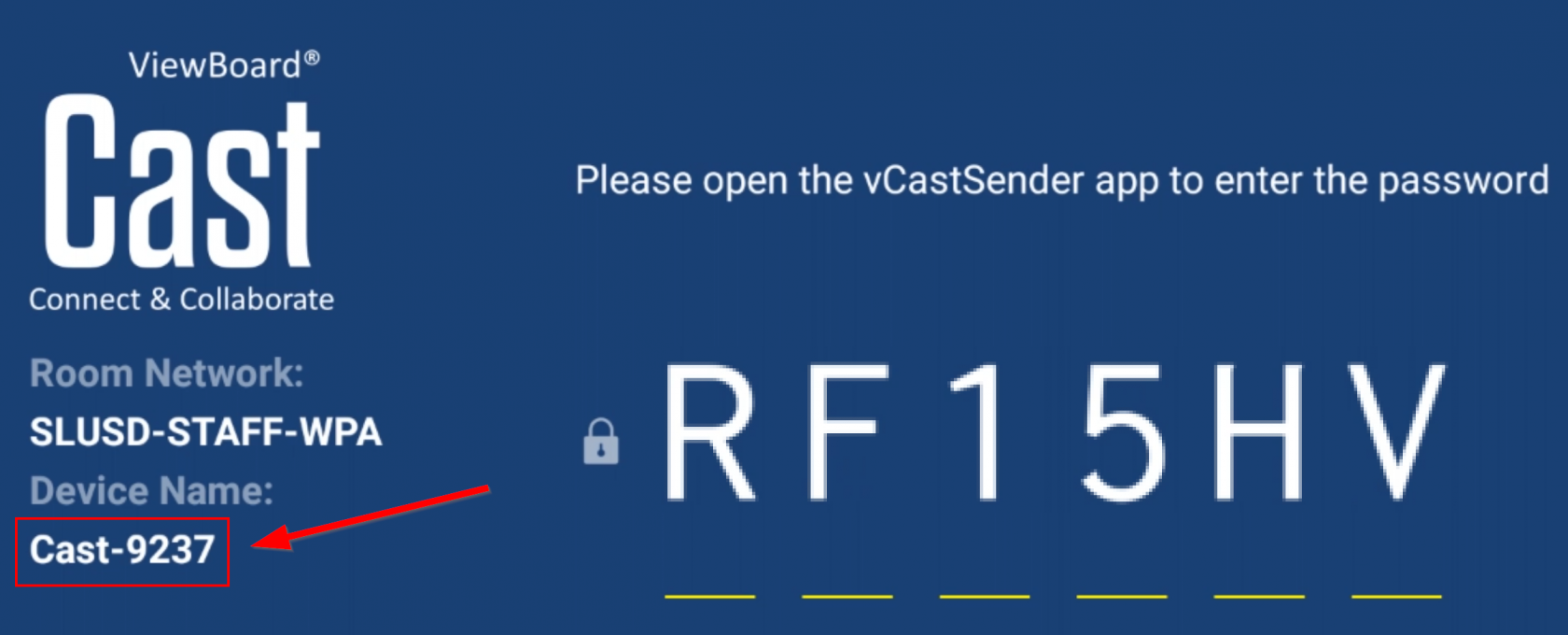
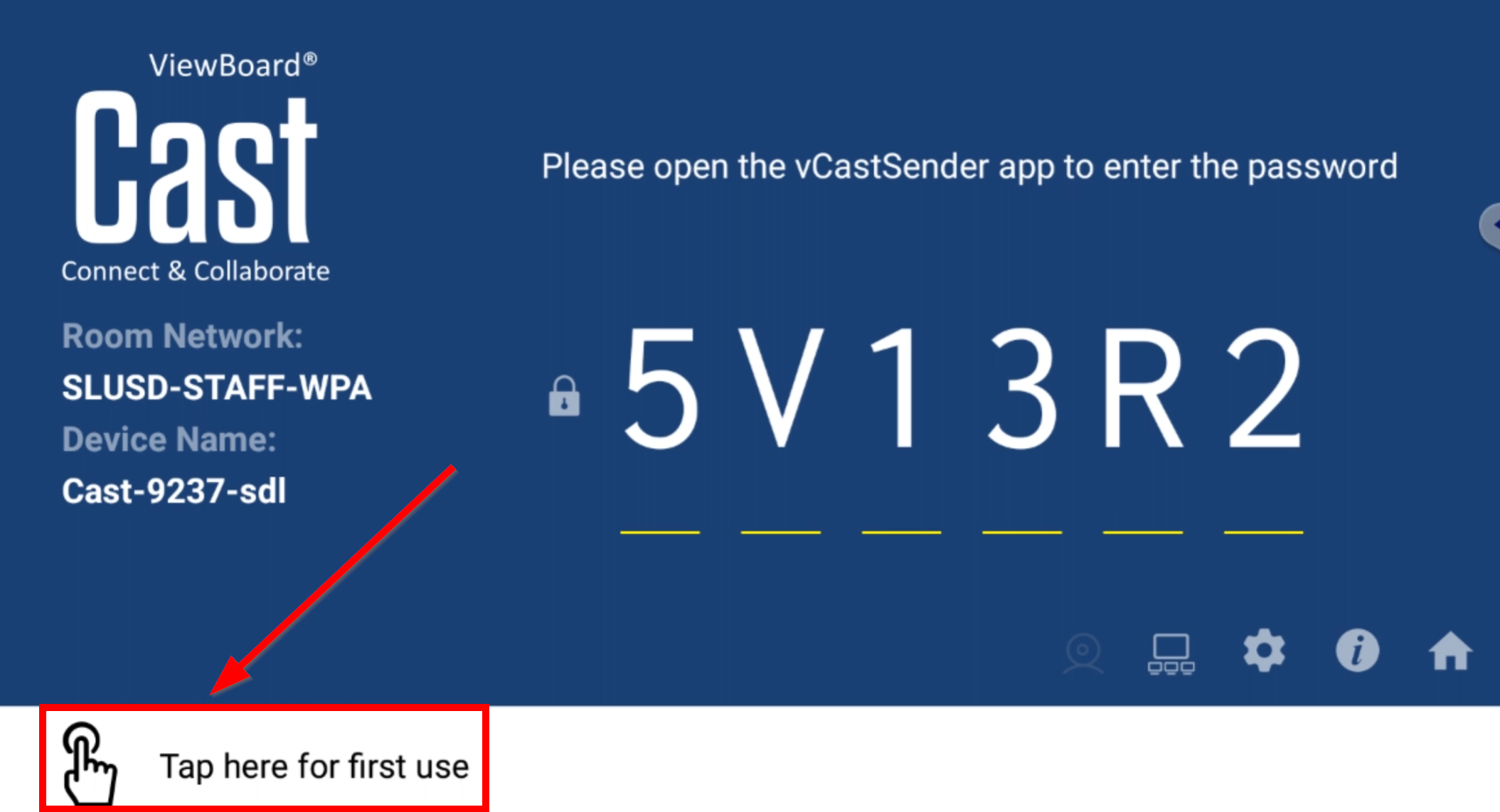
3. Note the **Device Name**
[](https://techhelp.slusd.us/uploads/images/gallery/2023-03/pARC9EanU48fK3WL-image-1680194176600.png)
4. On your Mac (**make sure it is on SLUSD-STAFF or SLUSD-STAFF-WPA Network**)
5. Click **Control Center**  in the menu bar, click the **Screen Mirroring** icon ,
[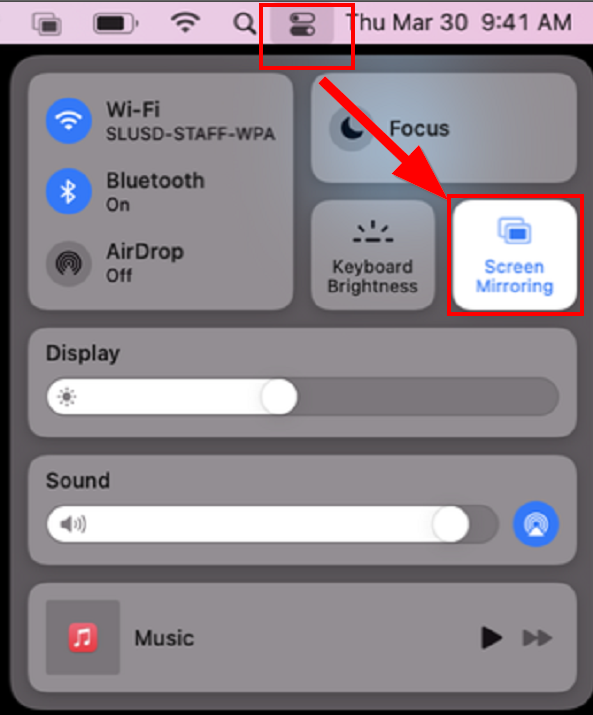](https://techhelp.slusd.us/uploads/images/gallery/2023-03/oPJEPuPE4TkaOFox-image-1680194542865.png)
6. Select the **device name** noted in step 3, enter **AirPlay Password** that is displayed on the Viewsonic board# How to cast using vCast Receiver
With vCast Receiver will allow you Mirror your Mac with touchback on the viewboard
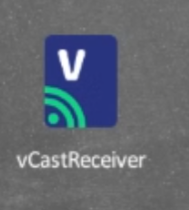
1. Launch the vCast Receiver on the board
[](https://techhelp.slusd.us/uploads/images/gallery/2023-04/qAsiGxZy2h565pHA-image-1681308882704.png)
2. Click on "Tap Here for first use"
[](https://techhelp.slusd.us/uploads/images/gallery/2023-04/4Ae2sJK0rfGo7pWD-image-1681308953660.png)
3.
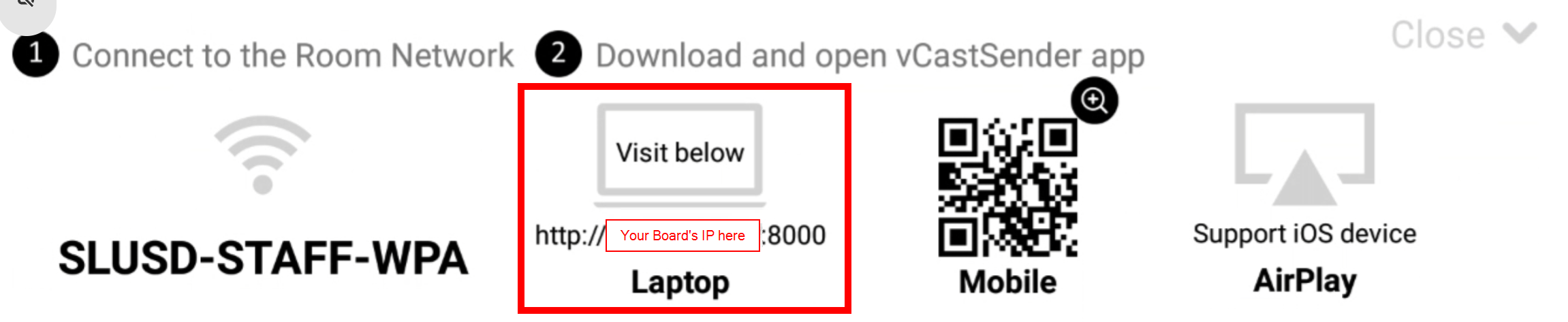
4. Your Board and Mac should already be on the same network (SLUSD-STAFF or SLUSD-STAFF-WPA). Visit the URL in on the screen to down the vCast Receiver app on your Mac
[](https://techhelp.slusd.us/uploads/images/gallery/2023-04/wsQVK18WTComnu3A-image-1681309457277.png)
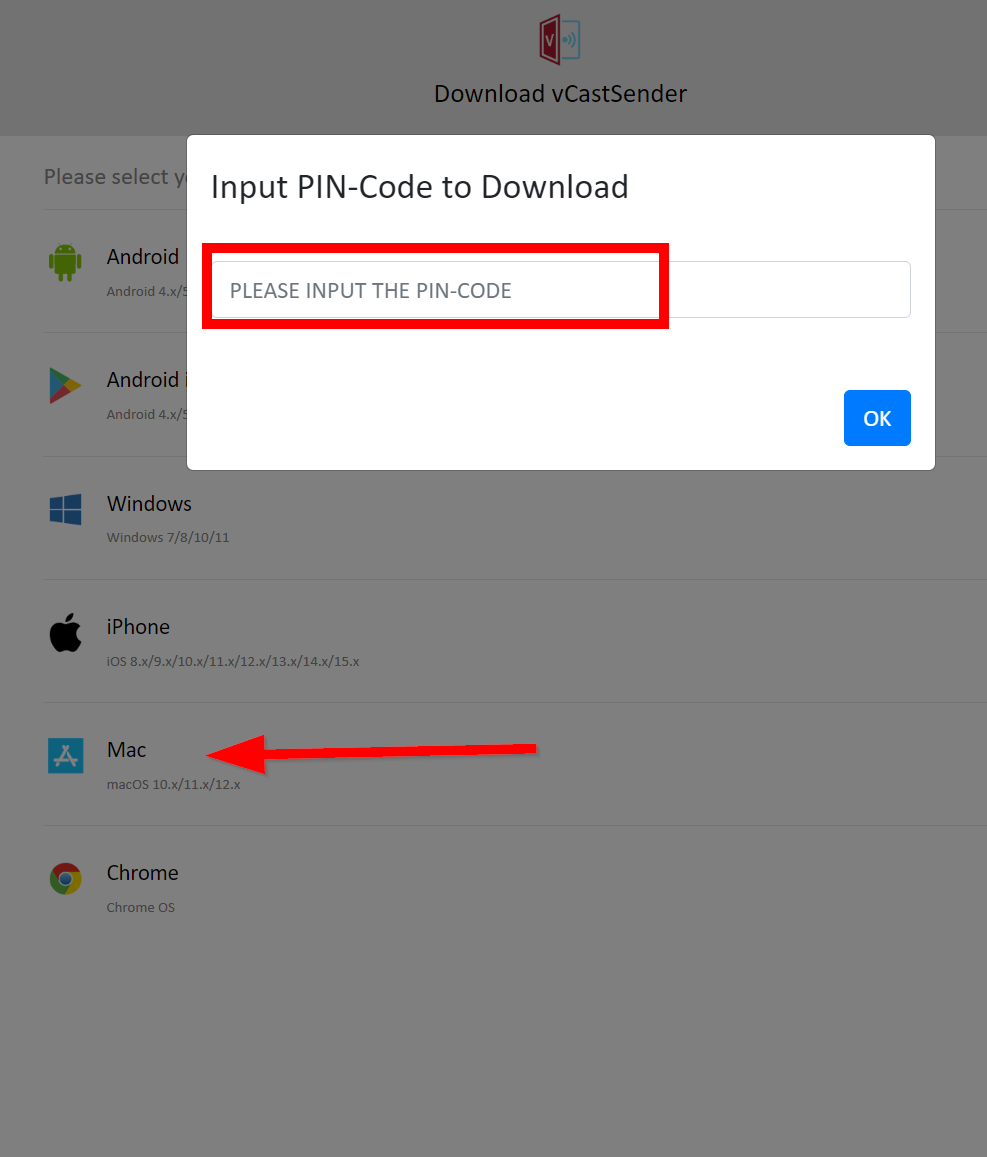
5. Enter the Pin code on your board, on the website, and then click on the Mac link to download and install it on your Macbook
[](https://techhelp.slusd.us/uploads/images/gallery/2023-04/SHGTkAwuNVOIN1Vk-image-1681313332253.png)
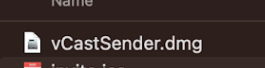
6. Run the vCastSender.dmg file you just downloaded and follow the instructions on the screen
[](https://techhelp.slusd.us/uploads/images/gallery/2023-04/6DaIlscESdmaU51v-image-1681313651993.png)
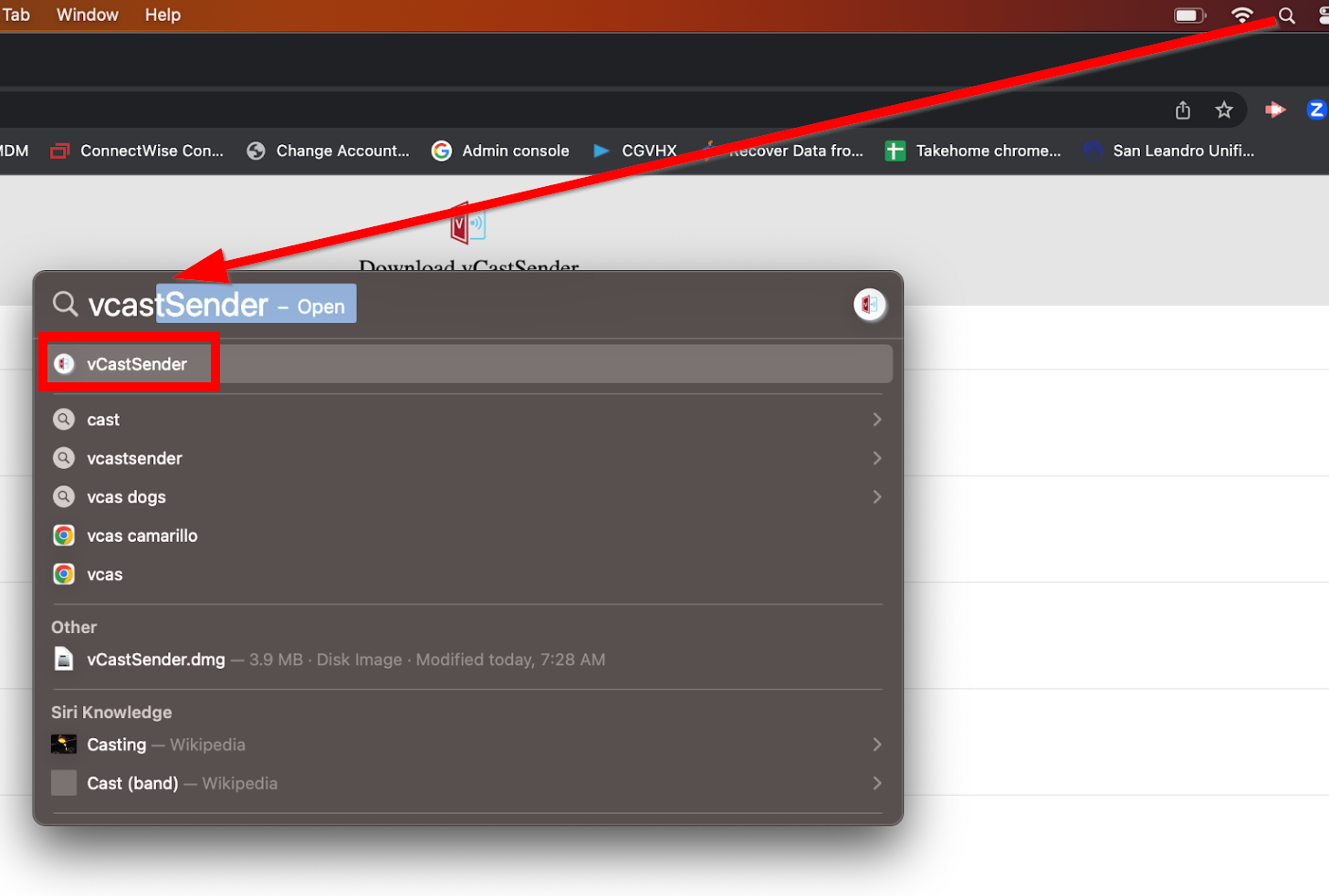
7. Launch the vCastSender App (an Update might need to be installed)
[](https://techhelp.slusd.us/uploads/images/gallery/2023-04/70P1IHT6Mchj4IE8-image-1681313802077.png)
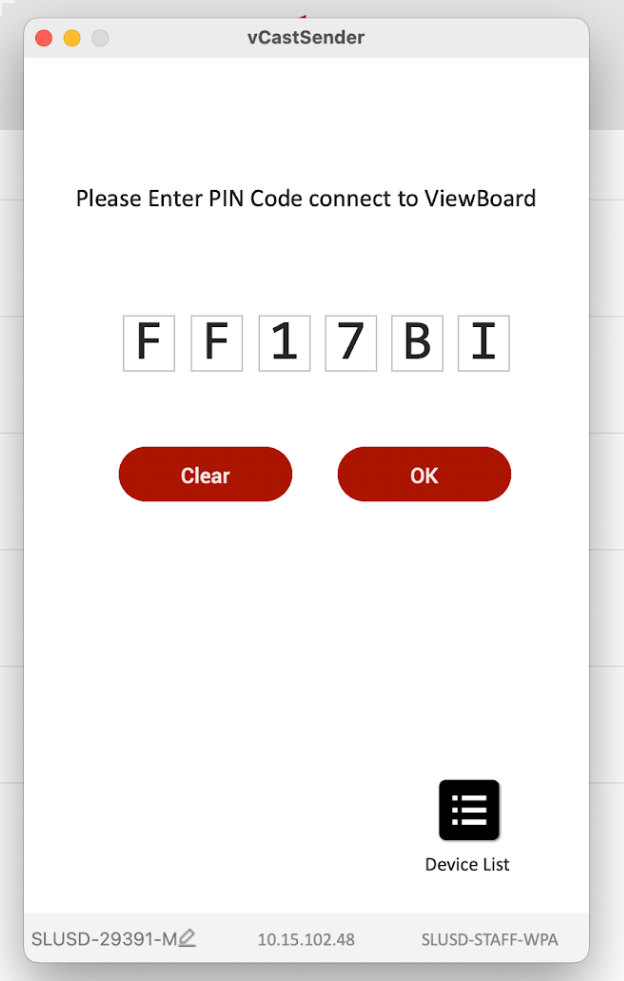
8. Enter Pin Code on board
[](https://techhelp.slusd.us/uploads/images/gallery/2023-04/0HnBUOlDltory4Lj-image-1681313873770.png)
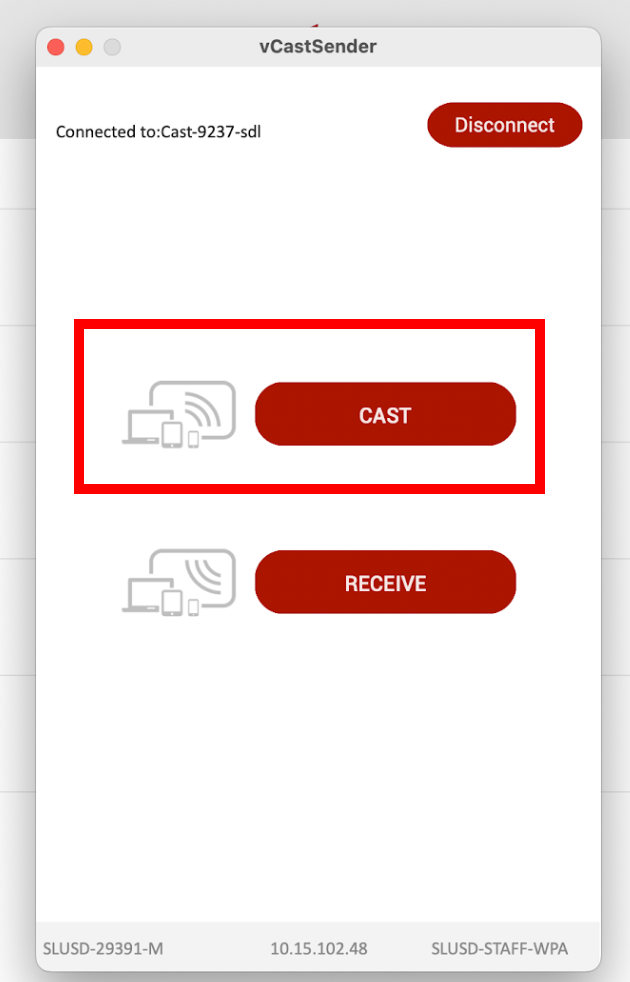
9. Click on the Cast Button
[](https://techhelp.slusd.us/uploads/images/gallery/2023-04/wRxLEHtKoRIwc2Xw-image-1681313913747.png)
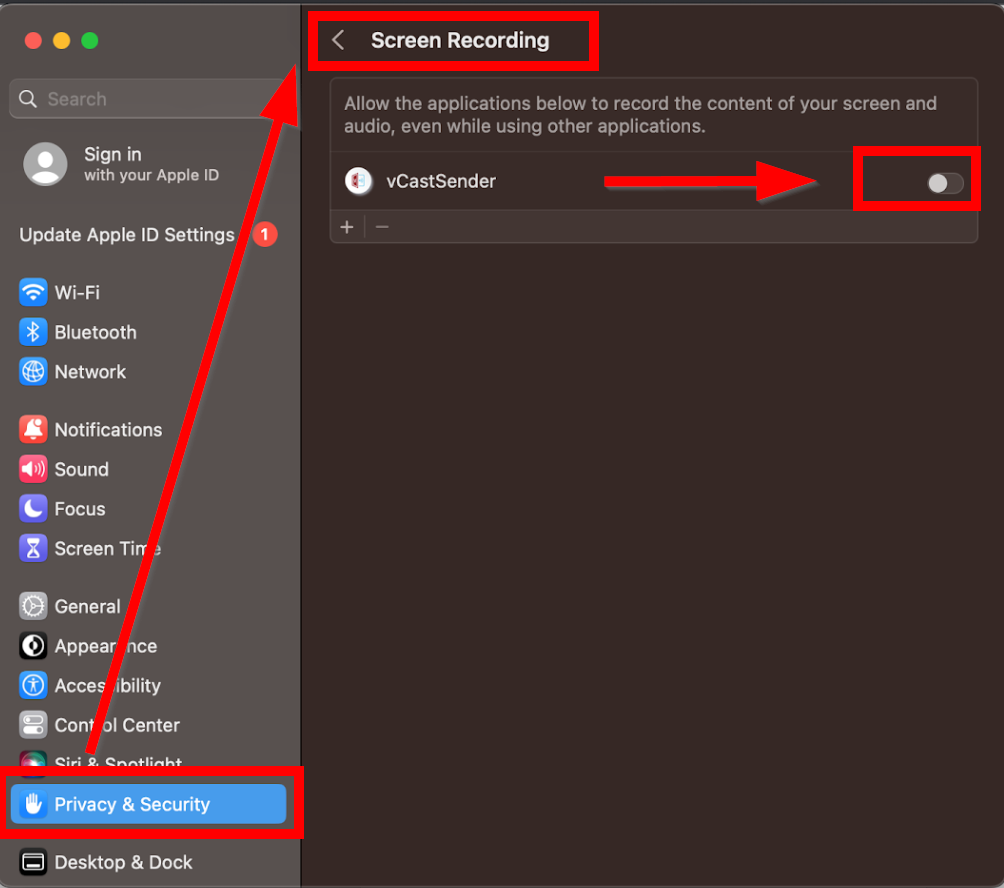
10. **NOTE** vCastSender will need access to "Screen Recording" to be able to mirror the board and "Accessibility" to be able to control the mouse. Please Allow these in Privacy & Security
[](https://techhelp.slusd.us/uploads/images/gallery/2023-04/s0Tyz5VdO9WZqpLJ-image-1681314547240.png)[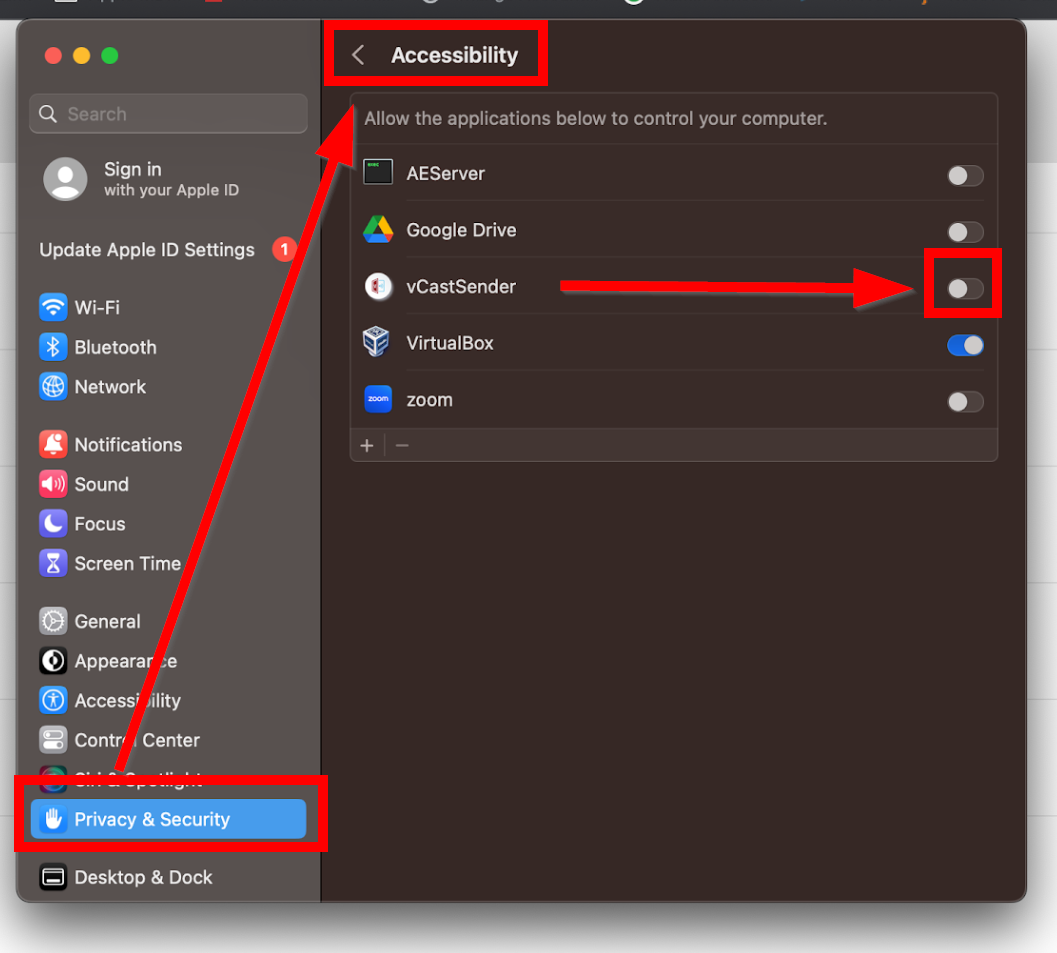](https://techhelp.slusd.us/uploads/images/gallery/2023-04/urgTK8ozpzLRmYq4-image-1681314511583.png)
11. Relaunch vCastSender and enter pin code as in step 8 and 9, and you should be able to mirror and control you Mac from the Board.# Guest sharing, or quick mirroring: myViewBoard Display
### For anyone to screenshare instantly, using any network, from anywhere, by using the Chrome browser
Great for guests, substitutes, or quick one-t o-one mirroring with students
1\. Open the "myViewBoard Display app" on the ViewBoard Home screen.
2\. Follow the on-screen instructions to go to:
[https://myviewboard.com/display/](https://myviewboard.com/display/) from a Chrome browser on the
mirroring device and enter the code as displayed. Select to mirror
the entire screen or just an application.
(no touchback)