Printers and Copiers
Help around adding and using the district Printers and Copy machines
- New Canon Copiers - 2022
- Adding a networked printer to your Mac
- Deleting an incorrectly saved password for your printer - Mac
New Canon Copiers - 2022
A collection of resources on using the new Canon copiers.
Making a copy
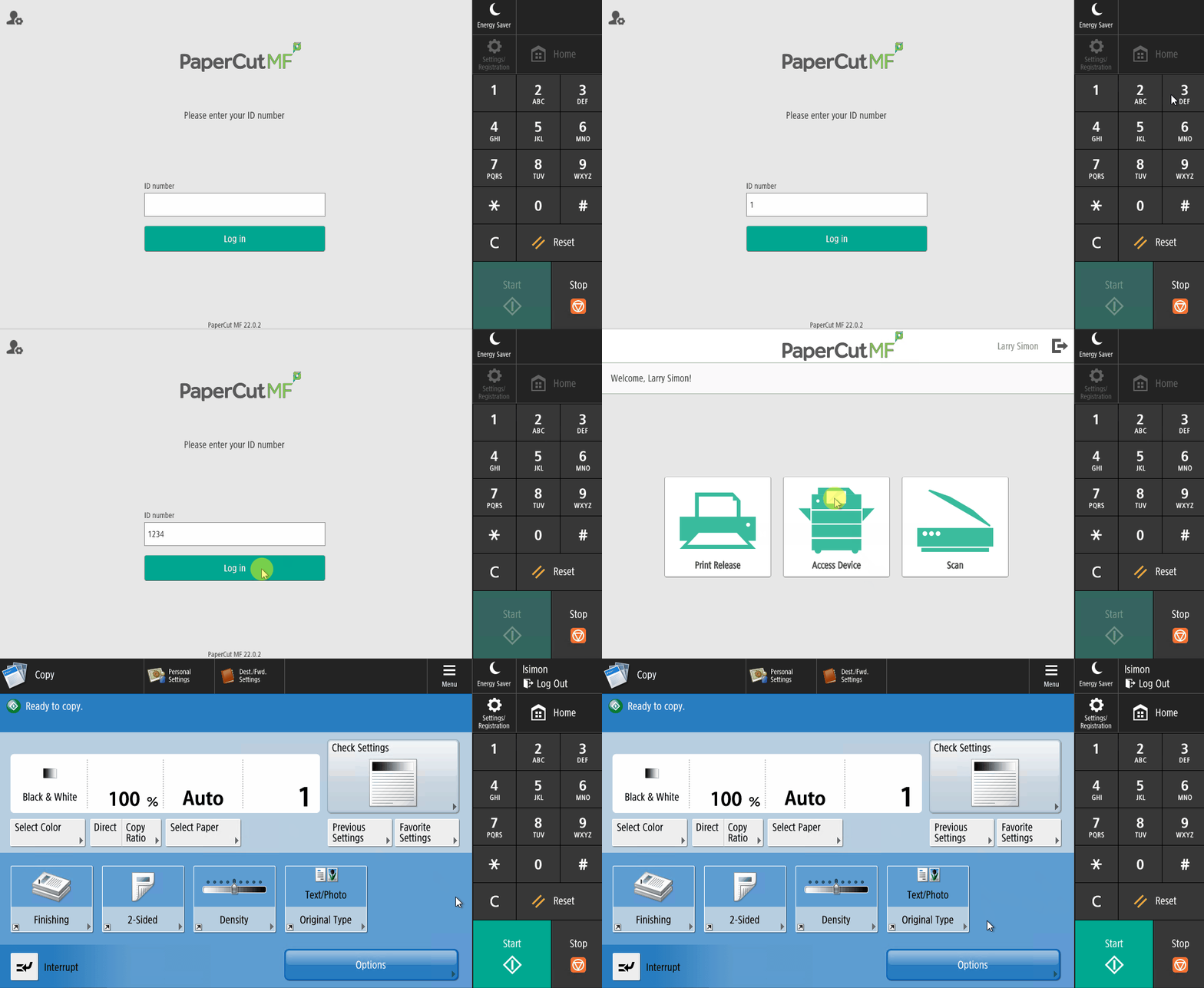
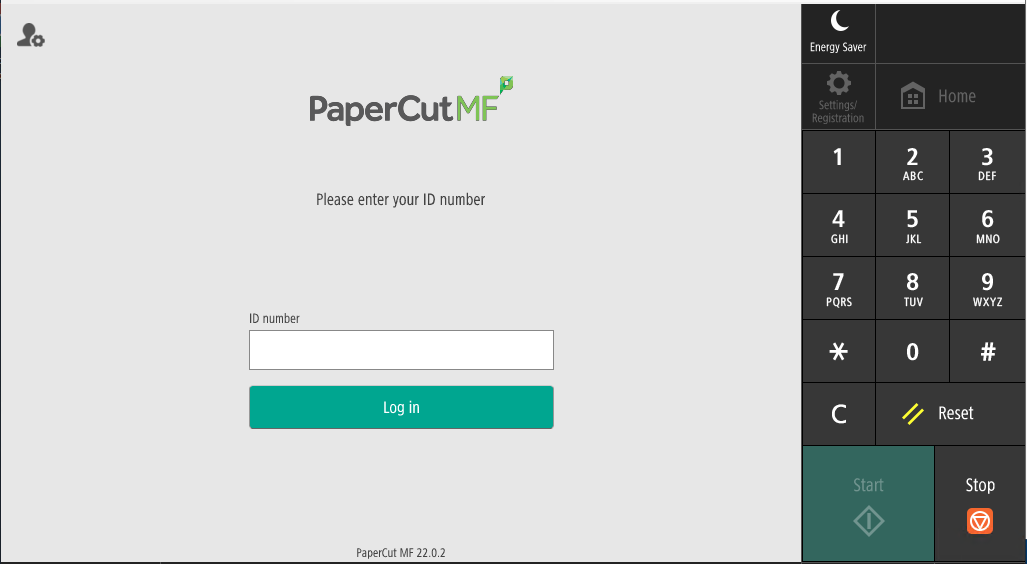
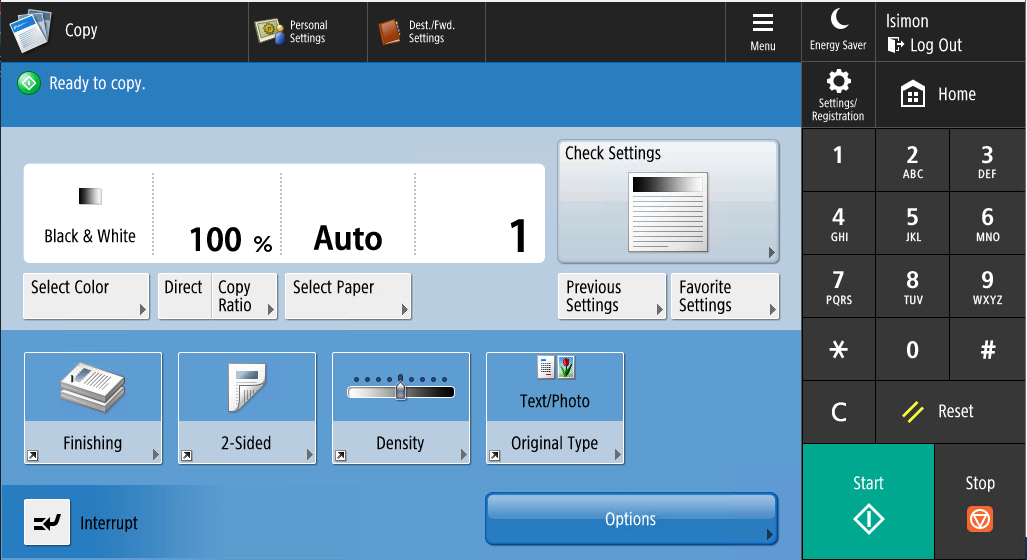
Making a copy on the new machines is easy. First, login to the copier by entering your 4 digit employee ID number.
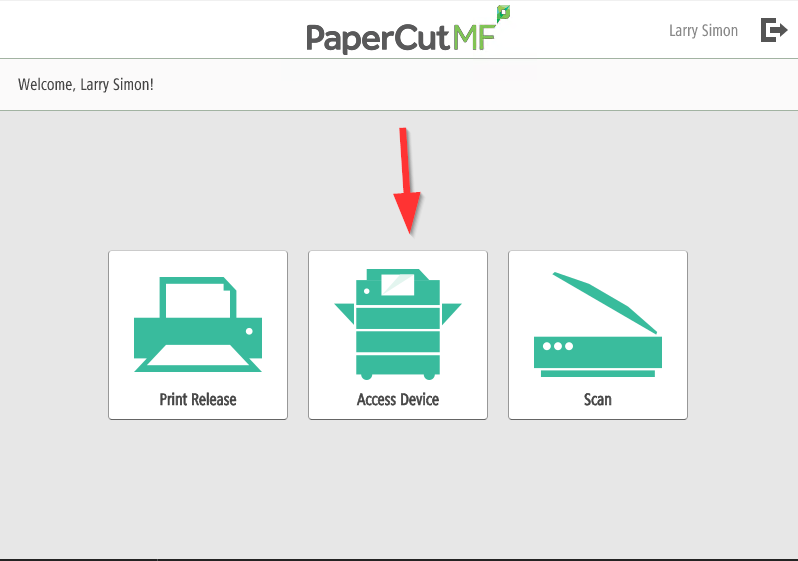
Next choose the "Access Device" option that looks like a copy machine.
From here you can choose any options you need, such as single or double sided, number of copies, stapling, etc. When you're done hit the copy button.
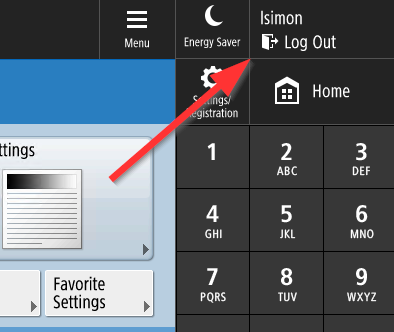
When you're done, be sure to hit Log Out at the top right of the screen (this will also happen automatically after roughly a minute of inactivity).
Getting supplies and support for the Canon copiers
Sending a print job to the copier
With the new copiers, you can send a print job up and walk up at your leisure to any Canon copier at your school (or even across the district) to release the job when you're ready.
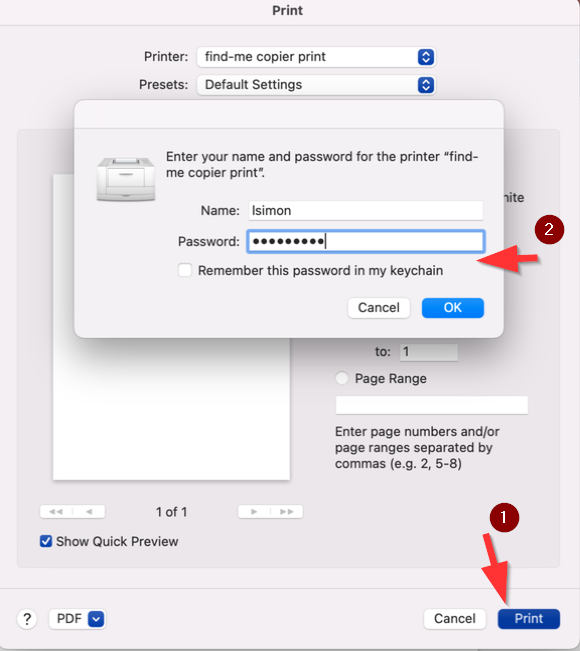
The first step to do this is to add the "Find-Me Printer" to your computer. Follow these steps to add the printer on your Mac.
After you've added the printer, once you send a job to the "Find-Me Printer" you will be able to release it after you walk up to any copier in the district. After logging in hit "Print Release", find your job and then hit "Print".
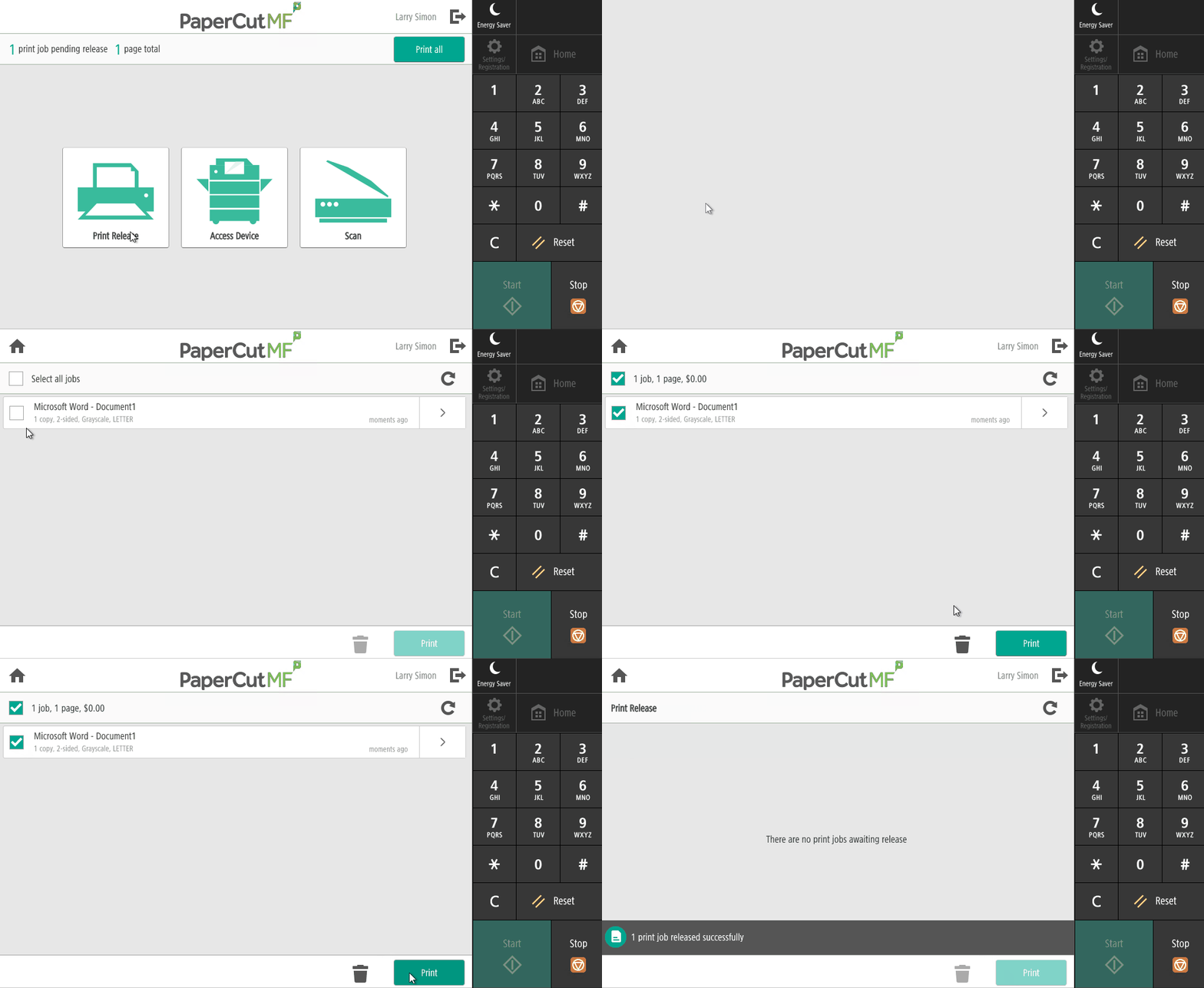
That's it! Your job will now print out.
Adding a networked printer to your Mac
You can follow these steps to add a networked printer to your Mac.
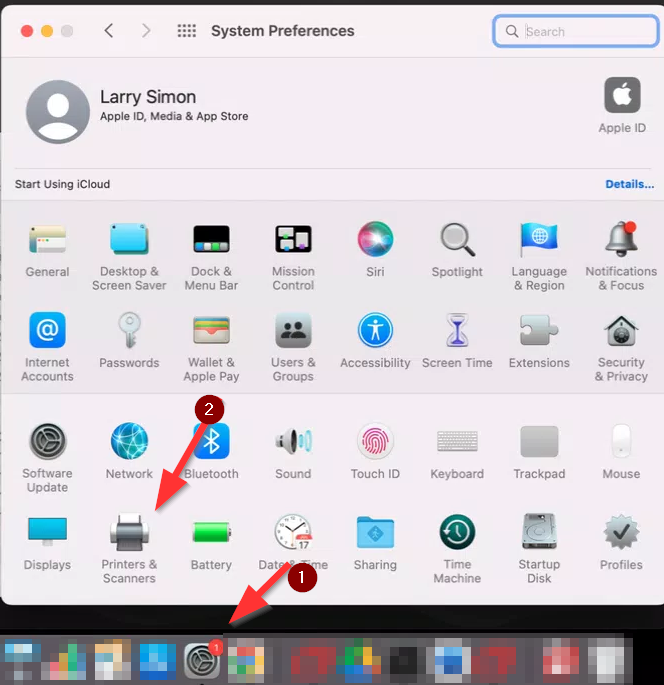
Click System Preferences on your dock and then clicking Printers & Scanners.
Click the + icon (1) and you will see a list of printers at your school site. Find the printer in your room here, click on it (2), ensure Secure AirPrint is selected under the driver (3) and then click Add (4).
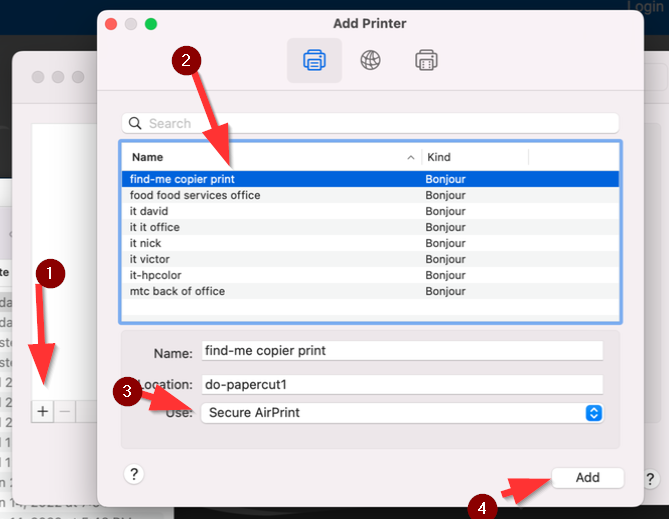
Your printer will now be added to your computer and available for use (note: you may need to restart Chrome in order to see it as an available printer). The first time you print you will be asked to enter your username and password. Your username is your email address without @slusd.us at the end and your password should match your Google account.
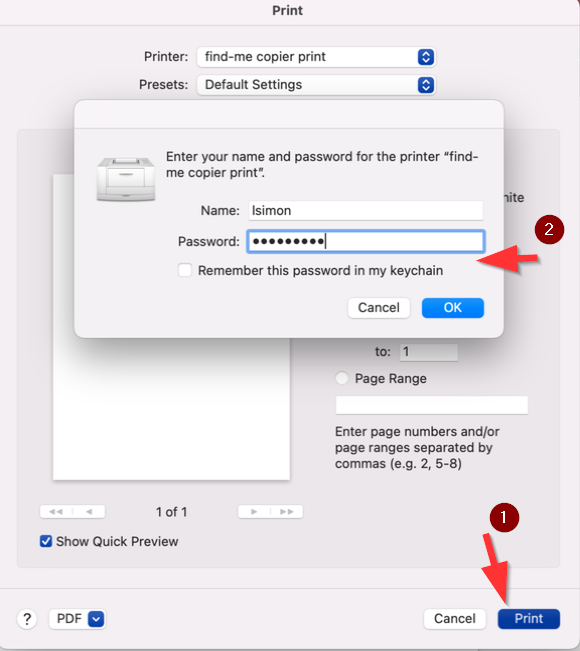
Deleting an incorrectly saved password for your printer - Mac
If you tried to print to a network printer and saved an incorrect password every print job you send will be stuck at Hold for Authentication. You can click the Refresh button to reenter the network username password
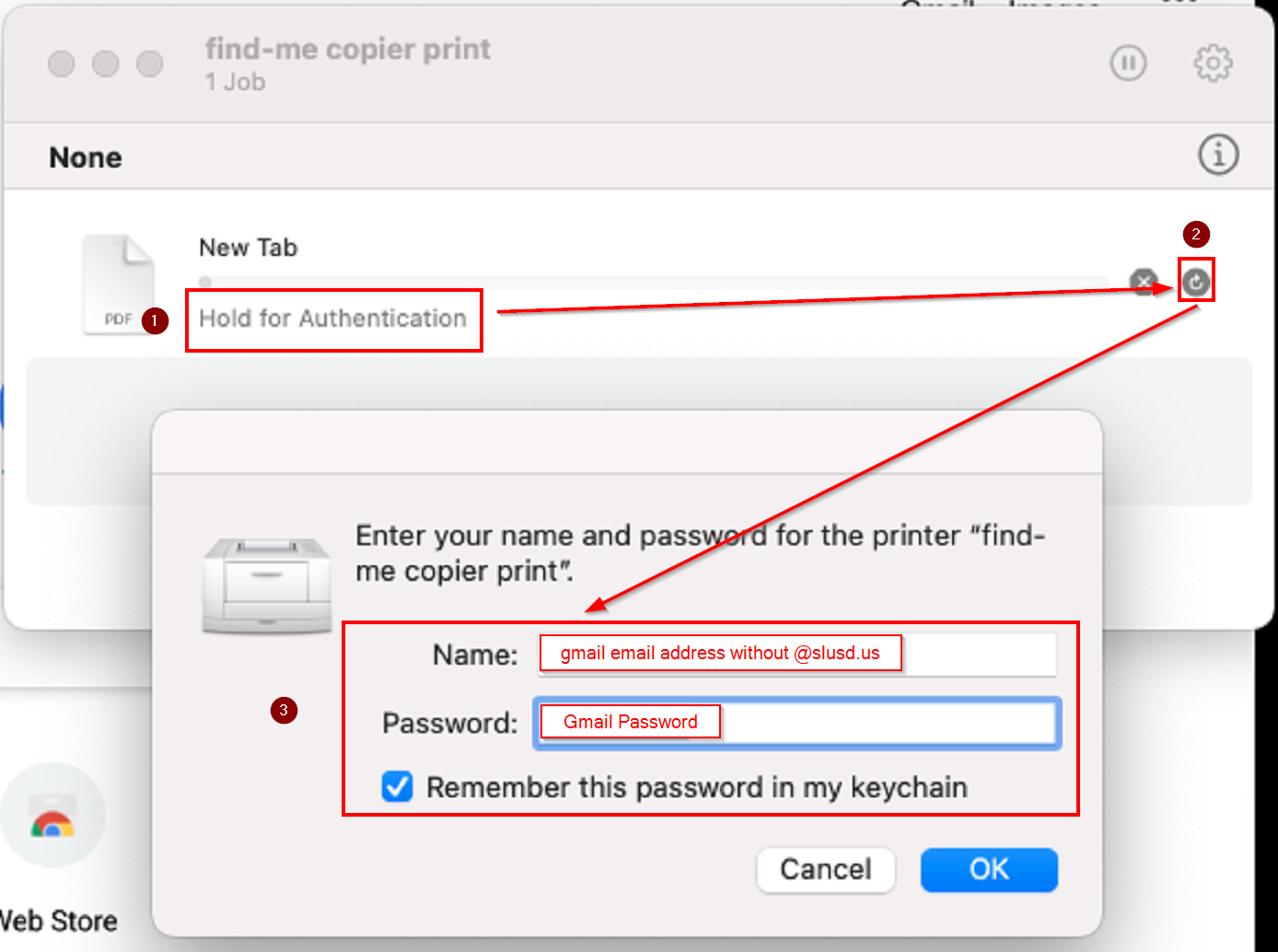
To Manually delete the keychain password
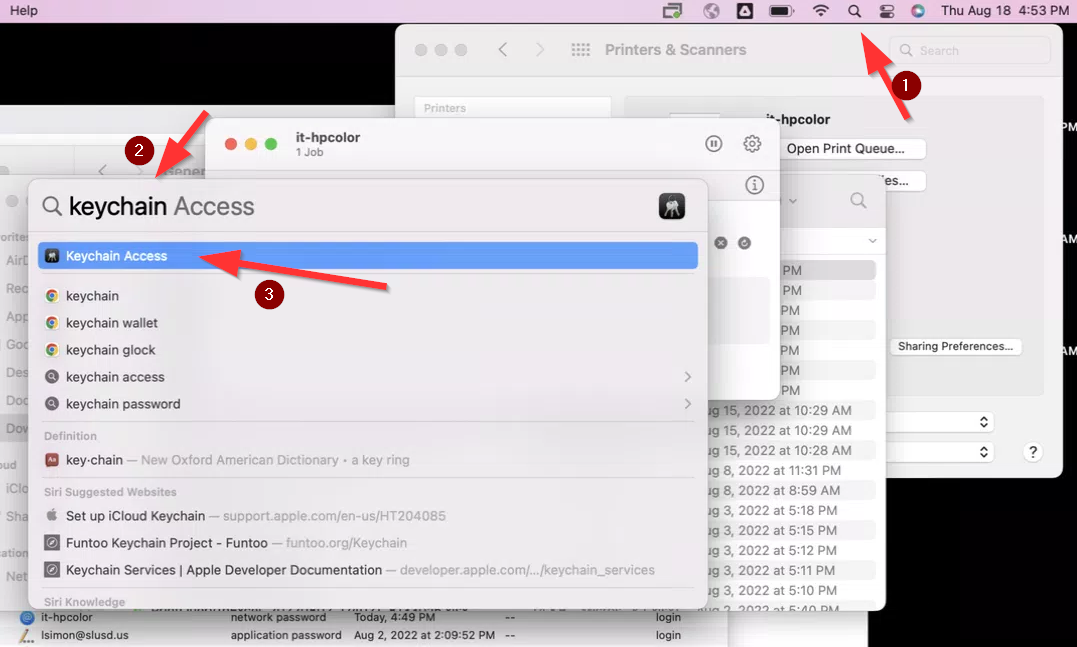
To resume printing you will need to first delete that saved password. Click the search button (1) at the top right of your Mac near the clock and find the "Keychain Access" app (2) and launch it (3):
In the keychain app click "login" on the left side (1) and then find your printer on this list by its name (2):
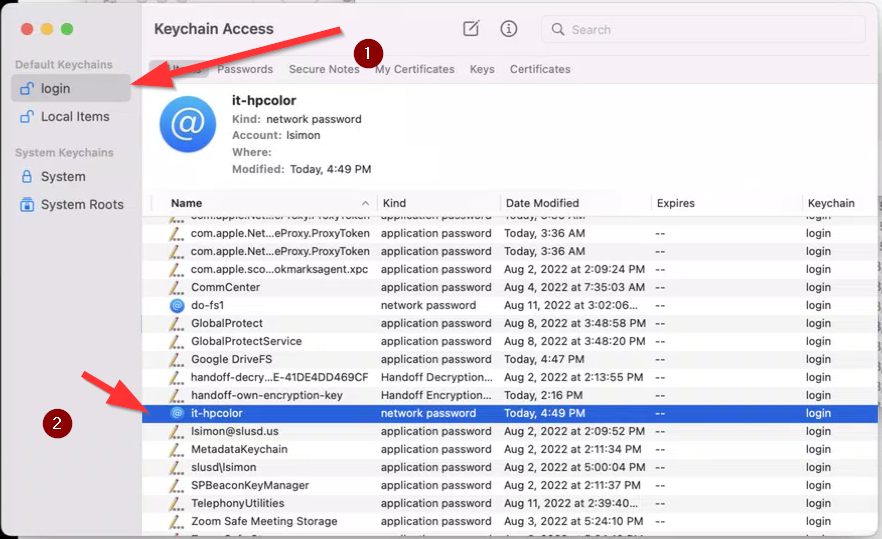
Now hit the "delete" key on your keyboard and confirm that you wish to delete the saved password:
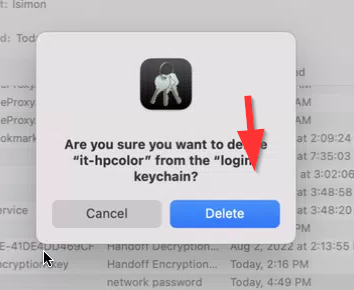
The next time you attempt to print to this printer again you will be asked to enter your username and password. Your username is your email address without @slusd.us at the end and your password should match your Google account.