# Google

# Turning on 2-Step Verification

# <span style="font-size: 20pt; font-family: Arial,sans-serif; color: #000000; background-color: transparent; font-weight: 400; font-style: normal; font-variant: normal; text-decoration: none; vertical-align: baseline; white-space: pre-wrap;">Google 2-Factor Authentication (2FA)</span>

<span style="font-size: 13pt; font-family: Arial,sans-serif; color: #262d32; background-color: transparent; font-weight: 400; font-style: normal; font-variant: normal; text-decoration: none; vertical-align: baseline; white-space: pre-wrap;">San Leandro Unified School District will be rolling out a technology called “2-factor authentication” within Google. You may know it by other names like “2FA”, “two-step verification”, or “multi-factor authentication (MFA)”.</span>

<details id="bkmrk-what-is-2-factor-aut"><summary>What is 2-factor authentication?</summary><span style="font-size: 13pt; font-family: Arial,sans-serif; color: #262d32; background-color: transparent; font-weight: 400; font-style: normal; font-variant: normal; text-decoration: none; vertical-align: baseline; white-space: pre-wrap;">2-factor authentication adds a second layer of protection during the login process. Currently, your Google login is tied to “something you know” (your password). 2-factor authentication adds the second layer of “something you have” (typically your smartphone, a temporary code, or absent that, a USB security key). You most likely already have experience using 2-factor authentication with an online banking account so enabling it within Google hopefully will not be a new experience.</span>

</details><details id="bkmrk-why-do-we-have-to-en"><summary>Why do we have to enable 2-factor authentication?</summary><span style="font-size: 13pt; font-family: Arial,sans-serif; color: #262d32; background-color: transparent; font-weight: 400; font-style: normal; font-variant: normal; text-decoration: none; vertical-align: baseline; white-space: pre-wrap;">2-factor authentication drastically reduces the chances of having the personal information in your Google account stolen by someone else. Though an extra step to logging in may feel frustrating, it’s less frustrating than dealing with a compromised account. Requiring an additional authentication method for account access is the next big push for districts to be compliant with cybersecurity risks/best practices. Additionally, the District’s insurance company requires that all staff complete cyber security training. Effective with the 2023-2024 school year, cyber security modules will be part of the required Keenan annual trainings.</span>

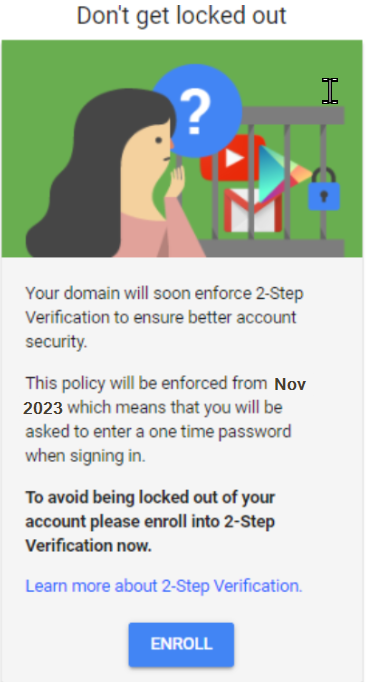
</details><details id="bkmrk-what%E2%80%99s-the-timeline-"><summary>What’s the timeline for this change?</summary><span style="font-size: 13pt; font-family: Arial,sans-serif; color: #262d32; background-color: transparent; font-weight: 400; font-style: normal; font-variant: normal; text-decoration: none; vertical-align: baseline; white-space: pre-wrap;">You will receive an email with instructions when you will need to enable 2-factor authentication (“Google 2-factor Authentication Deadline”).</span><span style="font-size: 13pt; font-family: Arial,sans-serif; color: #262d32; background-color: transparent; font-weight: bold; font-style: normal; font-variant: normal; text-decoration: none; vertical-align: baseline; white-space: pre-wrap;"> If you do not enable 2-factor authentication by the date listed, you will be locked out of your account and will need to contact IT to regain access.</span><span style="font-size: 13pt; font-family: Arial,sans-serif; color: #262d32; background-color: transparent; font-weight: 400; font-style: normal; font-variant: normal; text-decoration: none; vertical-align: baseline; white-space: pre-wrap;"> You will be reminded to enable 2-factor authentication during the grace period leading up to the deadline listed in the email. An example notification message will look like this …</span>

<span style="font-size: 13pt; font-family: Arial,sans-serif; color: #262d32; background-color: transparent; font-weight: 400; font-style: normal; font-variant: normal; text-decoration: none; vertical-align: baseline; white-space: pre-wrap;"><span style="border: none; display: inline-block; overflow: hidden; width: 229px; height: 427px;">![](https://lh6.googleusercontent.com/KkKobbRDHouMtJ9THiFN-ifpS-Kck_sasCd4Jdtir38z4-HvALUi5knOaUzQQFvMU9HA0jdE1gLyNP3s1LP736m3UZXZPwMFlEispReSLINeIBVzkmLgYqYTl37AZOuAFC7IWVWo1BxCvshTHLwwQfY)</span></span>

<span style="font-size: 13pt; font-family: Arial,sans-serif; color: #262d32; background-color: transparent; font-weight: 400; font-style: normal; font-variant: normal; text-decoration: none; vertical-align: baseline; white-space: pre-wrap;">If you have a smartphone and you are interested in enabling it now feel free, we encourage it! Directions for enabling 2-factor authentication (or as Google calls it “2-Step Verification”) are below in the section labeled “</span><span style="font-size: 13pt; font-family: Arial,sans-serif; color: #262d32; background-color: transparent; font-weight: bold; font-style: normal; font-variant: normal; text-decoration: none; vertical-align: baseline; white-space: pre-wrap;">Steps for enabling 2-factor Authentication</span><span style="font-size: 13pt; font-family: Arial,sans-serif; color: #262d32; background-color: transparent; font-weight: 400; font-style: normal; font-variant: normal; text-decoration: none; vertical-align: baseline; white-space: pre-wrap;">.“</span>

</details><details id="bkmrk-what-2-factor-authen"><summary>What 2-factor authentication method should I use?</summary><span style="font-size: 13pt; font-family: Arial,sans-serif; color: #262d32; background-color: transparent; font-weight: 400; font-style: normal; font-variant: normal; text-decoration: none; vertical-align: baseline; white-space: pre-wrap;">There are several methods you can use to complete 2-factor authentication:</span>

- <span style="font-size: 13pt; font-family: Arial,sans-serif; color: #262d32; background-color: transparent; font-weight: 400; font-style: normal; font-variant: normal; text-decoration: none; vertical-align: baseline; white-space: pre-wrap;">Use a **Google Prompt** (e.g. the Gmail App) configured and signed in with your district email on your phone (recommended).</span>
- <span style="font-size: 13pt; font-family: Arial,sans-serif; color: #262d32; background-color: transparent; font-weight: 400; font-style: normal; font-variant: normal; text-decoration: none; vertical-align: baseline; white-space: pre-wrap;">Use an **authenticator application** such as Google Authenticator. Does not require your district account to be signed in.</span>
- <span style="font-size: 13pt; font-family: Arial,sans-serif; color: #262d32; background-color: transparent; font-weight: 400; font-style: normal; font-variant: normal; text-decoration: none; vertical-align: baseline; white-space: pre-wrap;">Use a **USB key** that you plug into your computer. If you are a district employee and choose this method, a USB security key will be provided. </span>
- <span style="font-size: 13pt; font-family: Arial,sans-serif; color: #262d32; background-color: transparent; font-weight: 400; font-style: normal; font-variant: normal; text-decoration: none; vertical-align: baseline; white-space: pre-wrap;">Use **text messaging** (the least preferred backup method).</span>
- <span style="font-size: 13pt; font-family: Arial,sans-serif; color: #262d32; background-color: transparent; font-weight: 400; font-style: normal; font-variant: normal; text-decoration: none; vertical-align: baseline; white-space: pre-wrap;">Print 10 pre-established **backup codes**.</span>

<span style="font-size: 13pt; font-family: Arial,sans-serif; color: #262d32; background-color: transparent; font-weight: 400; font-style: normal; font-variant: normal; text-decoration: none; vertical-align: baseline; white-space: pre-wrap;">The Google Prompt method mentioned above is called a “push” authentication, where you will have to acknowledge a pop-up notification from a Google app on your phone. </span><span style="font-size: 13pt; font-family: Arial,sans-serif; color: #262d32; background-color: transparent; font-weight: 400; font-style: normal; font-variant: normal; text-decoration: none; vertical-align: baseline; white-space: pre-wrap;">In the event that you do not have your phone, it is important that you setup backup methods for completing 2-factor authentication. </span>

<span style="font-size: 13pt; font-family: Arial,sans-serif; color: #262d32; background-color: transparent; font-weight: 400; font-style: normal; font-variant: normal; text-decoration: none; vertical-align: baseline; white-space: pre-wrap;">To setup backup methods once 2-factor is enabled, </span>

- <span style="font-size: 13pt; font-family: Arial,sans-serif; color: #262d32; background-color: transparent; font-weight: 400; font-style: normal; font-variant: normal; text-decoration: none; vertical-align: baseline; white-space: pre-wrap;">Go to </span>[<span style="font-size: 13pt; font-family: Arial,sans-serif; color: #00238c; background-color: transparent; font-weight: 400; font-style: normal; font-variant: normal; text-decoration: none; vertical-align: baseline; white-space: pre-wrap;">https://myaccount.google.com/</span>](https://myaccount.google.com/)<span style="font-size: 13pt; font-family: Arial,sans-serif; color: #262d32; background-color: transparent; font-weight: 400; font-style: normal; font-variant: normal; text-decoration: none; vertical-align: baseline; white-space: pre-wrap;"> </span>
- <span style="font-size: 13pt; font-family: Arial,sans-serif; color: #262d32; background-color: transparent; font-weight: 400; font-style: normal; font-variant: normal; text-decoration: none; vertical-align: baseline; white-space: pre-wrap;">Select “Security” on the left, </span>
- <span style="font-size: 13pt; font-family: Arial,sans-serif; color: #262d32; background-color: transparent; font-weight: 400; font-style: normal; font-variant: normal; text-decoration: none; vertical-align: baseline; white-space: pre-wrap;">Click the right arrow next to “2-Step Verification”, enter your password</span>
- <span style="font-size: 13pt; font-family: Arial,sans-serif; color: #262d32; background-color: transparent; font-weight: 400; font-style: normal; font-variant: normal; text-decoration: none; vertical-align: baseline; white-space: pre-wrap;">Follow the prompts in the section labeled “Available second steps”.</span>

</details><details id="bkmrk-steps-for-enabling-2"><summary>Steps for enabling 2-factor Authentication</summary><span style="font-size: 13pt; font-family: Arial,sans-serif; color: #000000; background-color: transparent; font-weight: 400; font-style: normal; font-variant: normal; text-decoration: none; vertical-align: baseline; white-space: pre-wrap;">Google provides an always up-to-date guide here. </span>[<span style="font-size: 11pt; font-family: Arial,sans-serif; color: #1155cc; background-color: transparent; font-weight: 400; font-style: normal; font-variant: normal; text-decoration: underline; -webkit-text-decoration-skip: none; text-decoration-skip-ink: none; vertical-align: baseline; white-space: pre-wrap;">(https://support.google.com/accounts/answer/185839</span>](https://support.google.com/accounts/answer/185839)<span style="font-size: 11pt; font-family: Arial,sans-serif; color: #000000; background-color: transparent; font-weight: 400; font-style: normal; font-variant: normal; text-decoration: none; vertical-align: baseline; white-space: pre-wrap;">)</span>

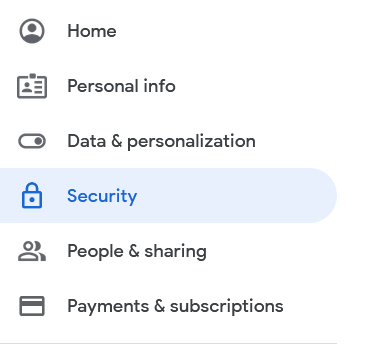
1. <span style="font-size: 13pt; font-family: Arial,sans-serif; color: #262d32; background-color: transparent; font-weight: 400; font-style: normal; font-variant: normal; text-decoration: none; vertical-align: baseline; white-space: pre-wrap;">In a web browser, visit your Google settings page located here: </span>[<span style="font-size: 13pt; font-family: Arial,sans-serif; color: #00238c; background-color: transparent; font-weight: 400; font-style: normal; font-variant: normal; text-decoration: none; vertical-align: baseline; white-space: pre-wrap;">https://myaccount.google.com</span>](https://myaccount.google.com/)<span style="font-size: 13pt; font-family: Arial,sans-serif; color: #262d32; background-color: transparent; font-weight: 400; font-style: normal; font-variant: normal; text-decoration: none; vertical-align: baseline; white-space: pre-wrap;"> and select “Security” on the left.</span><span style="font-size: 13pt; font-family: Arial,sans-serif; color: #262d32; background-color: transparent; font-weight: 400; font-style: normal; font-variant: normal; text-decoration: none; vertical-align: baseline; white-space: pre-wrap;">  
    </span><span style="font-size: 13pt; font-family: Arial,sans-serif; color: #262d32; background-color: transparent; font-weight: 400; font-style: normal; font-variant: normal; text-decoration: none; vertical-align: baseline; white-space: pre-wrap;"><span style="border: none; display: inline-block; overflow: hidden; width: 260px; height: 241px;">![Security](https://lh3.googleusercontent.com/nu6_Y8uLeqFQZ610n1V5z2-JxtLI9OYkpFU5nmzJ_0KUB-4PTpGA-9dOSl8StKIYXTXACZELV9y-NBIuNDTKgPNSm8KEoyFEXlRl4rAO5w0P8Wsg5Sh5OmobKgOHHKvp9PuIsj2CY94mi7HBBKkqyXc)</span></span>
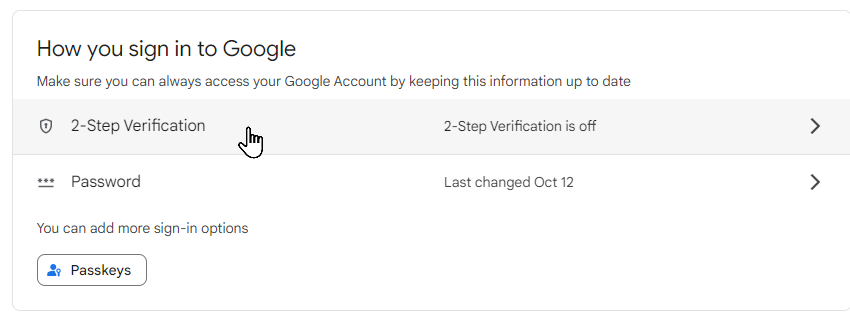
2. <span style="font-size: 13pt; font-family: Arial,sans-serif; color: #262d32; background-color: transparent; font-weight: 400; font-style: normal; font-variant: normal; text-decoration: none; vertical-align: baseline; white-space: pre-wrap;">In the center of the page scroll down to the section labeled “How you sign in to Google”, Click on 2-Step Verification.  
    </span><span style="font-size: 13pt; font-family: Arial,sans-serif; color: #262d32; background-color: transparent; font-weight: 400; font-style: normal; font-variant: normal; text-decoration: none; vertical-align: baseline; white-space: pre-wrap;"><span style="border: none; display: inline-block; overflow: hidden; width: 380px; height: 140px;">![](https://lh6.googleusercontent.com/sW_-PBXkjNeUW8oGJ7V0LcuKi3eYBCZrWWrcbz7SkTNZRTrJC60zjyRu0nAlbMDp56X2KRtqC89VqAubML1ylydSyi3GpKv2_hQq6CcG_4iXhC6l89z73tSDAJWP6v6P14_mkS5-s1u1jcPt8D6mCho)</span></span>
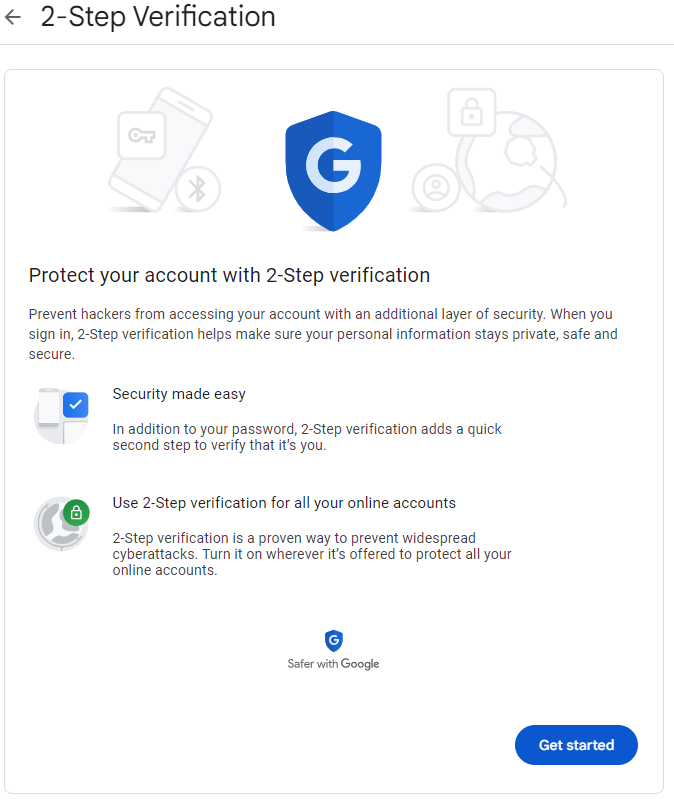
3. <span style="font-size: 13pt; font-family: Arial,sans-serif; color: #262d32; background-color: transparent; font-weight: 400; font-style: normal; font-variant: normal; text-decoration: none; vertical-align: baseline; white-space: pre-wrap;">Select the “GET STARTED” button, you will then be prompted to enter in your San Leandro Unified School Distirct Google password.</span><span style="font-size: 13pt; font-family: Arial,sans-serif; color: #262d32; background-color: transparent; font-weight: 400; font-style: normal; font-variant: normal; text-decoration: none; vertical-align: baseline; white-space: pre-wrap;">  
    </span><span style="font-size: 13pt; font-family: Arial,sans-serif; color: #262d32; background-color: transparent; font-weight: 400; font-style: normal; font-variant: normal; text-decoration: none; vertical-align: baseline; white-space: pre-wrap;"><span style="border: none; display: inline-block; overflow: hidden; width: 332px; height: 395px;">![](https://lh6.googleusercontent.com/4fbj8Dk6LhN6dq55qBvFB4r9KAbNqz8sumUamVlvtV5b4FEqzZCYR4EuBPJy7n4yloy__KWqZAJotv0566dwZFBJgx7yy-2rAtsVBHkHf7vA2WxQtFH-DXGfvfZ-1aYwa0mZpY6PHj46S9GJnjzTSEk)  
      
    </span></span>
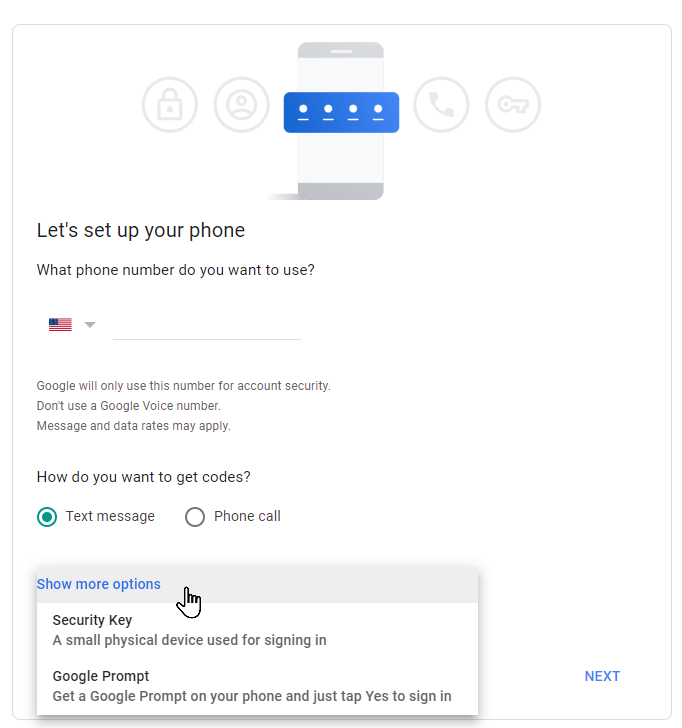
4. <span style="font-size: 13pt; font-family: Arial,sans-serif; color: #262d32; background-color: transparent; font-weight: 400; font-style: normal; font-variant: normal; text-decoration: none; vertical-align: baseline; white-space: pre-wrap;">Google will default to using text messages. </span><span style="font-size: 13pt; font-family: Arial,sans-serif; color: #262d32; background-color: transparent; font-weight: bold; font-style: normal; font-variant: normal; text-decoration: none; vertical-align: baseline; white-space: pre-wrap;"> If you do not want to use this option please Select “Show more options”</span><span style="font-size: 13pt; font-family: Arial,sans-serif; color: #262d32; background-color: transparent; font-weight: bold; font-style: normal; font-variant: normal; text-decoration: none; vertical-align: baseline; white-space: pre-wrap;">  
    </span><span style="font-size: 13pt; font-family: Arial,sans-serif; color: #262d32; background-color: transparent; font-weight: bold; font-style: normal; font-variant: normal; text-decoration: none; vertical-align: baseline; white-space: pre-wrap;">\*</span><span style="font-size: 13pt; font-family: Arial,sans-serif; color: #262d32; background-color: transparent; font-weight: 400; font-style: normal; font-variant: normal; text-decoration: none; vertical-align: baseline; white-space: pre-wrap;">Recommended option is Google Prompt   
    </span><span style="font-size: 13pt; font-family: Arial,sans-serif; color: #262d32; background-color: transparent; font-weight: 400; font-style: normal; font-variant: normal; text-decoration: none; vertical-align: baseline; white-space: pre-wrap;"><span style="border: none; display: inline-block; overflow: hidden; width: 322px; height: 344px;">![](https://lh5.googleusercontent.com/tu7JPjPA1GShkBVas60lckil-bFmqbprtri8lukXPq74S0ZyQYjvq1km4p3PyTpWgb9WnABcKYxRKo-hO7Cz7Wg0CbW5CQ_8FYVNdju82oCMDjRB5nuEzAHeeWCech66MIYR_jRrbY-OloaezqMI_vM)</span></span>
5. <span style="color: #262d32; font-family: Arial, sans-serif;"><span style="font-size: 17.3333px; white-space-collapse: preserve;">Follow the directions on your screen.</span></span>

</details><details id="bkmrk-how-do-i-change-my-2"><summary>How do I change my 2FA sign in options</summary>1. <span style="font-size: 13pt; font-family: Arial,sans-serif; color: #000000; background-color: transparent; font-weight: 400; font-style: normal; font-variant: normal; text-decoration: none; vertical-align: baseline; white-space: pre-wrap;">Go to </span>[<span style="font-size: 13pt; font-family: Arial,sans-serif; color: #1155cc; background-color: transparent; font-weight: 400; font-style: normal; font-variant: normal; text-decoration: underline; -webkit-text-decoration-skip: none; text-decoration-skip-ink: none; vertical-align: baseline; white-space: pre-wrap;">https://myaccount.google.com/</span>](https://myaccount.google.com/)<span style="font-size: 15pt; font-family: Arial,sans-serif; color: #262d32; background-color: transparent; font-weight: 400; font-style: normal; font-variant: normal; text-decoration: none; vertical-align: baseline; white-space: pre-wrap;"> and s</span><span style="font-size: 13pt; font-family: Arial,sans-serif; color: #262d32; background-color: transparent; font-weight: 400; font-style: normal; font-variant: normal; text-decoration: none; vertical-align: baseline; white-space: pre-wrap;">elect “Security” on the left.</span>
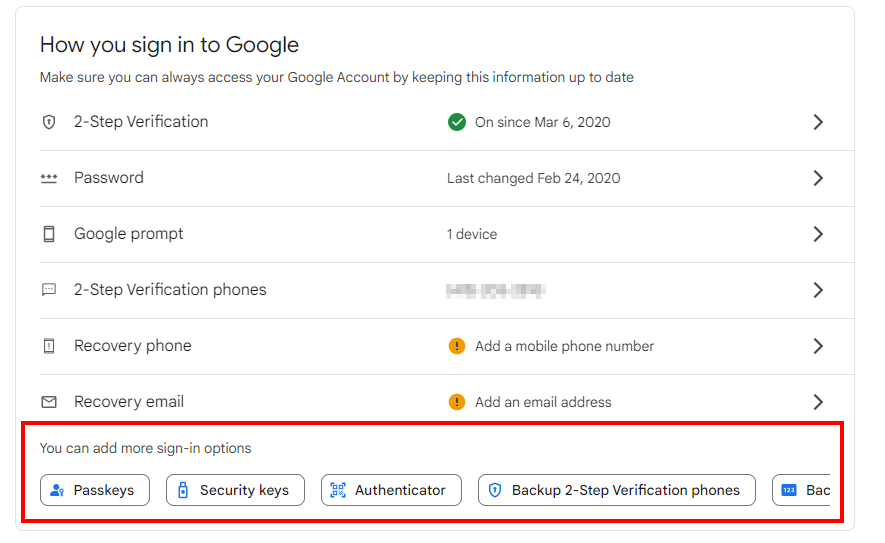
2. <span style="font-size: 13pt; font-family: Arial,sans-serif; color: #262d32; background-color: transparent; font-weight: 400; font-style: normal; font-variant: normal; text-decoration: none; vertical-align: baseline; white-space: pre-wrap;">In the center of the page scroll down to the section labeled “How you sign in to Google”</span>
3. <span style="font-size: 13pt; font-family: Arial,sans-serif; color: #262d32; background-color: transparent; font-weight: 400; font-style: normal; font-variant: normal; text-decoration: none; vertical-align: baseline; white-space: pre-wrap;">Click on the option you are trying to change</span>
    - Please note the “You can add more sign-in options sections. In this section, it will allow you to sign up with Authenticator, Print out Backup codes, etc
<span style="font-size: 13pt; font-family: Arial,sans-serif; color: #262d32; background-color: transparent; font-weight: 400; font-style: normal; font-variant: normal; text-decoration: none; vertical-align: baseline; white-space: pre-wrap;"><span style="border: none; display: inline-block; overflow: hidden; width: 491px; height: 302px;">![](https://lh6.googleusercontent.com/91FAWZIMNFzy8VF82REGj2f9zwZjVXi-4B1Pb-YqlIcizJcTNah7AiTUx7BkfwUTwSaIhhEpMiqK_JXWTjhxhxhwUeCJWFq4LjeuNq925YyxM4loTDbW1kBS3iADWe0YfmwdRY7vO6fsSQQBDxDObt8)</span></span>

</details><details id="bkmrk-what-if-i-do-not-wan"><summary>What if I do not want to use my phone number for texting</summary><span style="font-size: 13pt; font-family: Arial,sans-serif; color: #262d32; background-color: transparent; font-weight: 400; font-style: normal; font-variant: normal; text-decoration: none; vertical-align: baseline; white-space: pre-wrap;">You do not need to your text messaging option. </span><span style="font-size: 13pt; font-family: Arial,sans-serif; color: #262d32; background-color: transparent; font-weight: 400; font-style: normal; font-variant: normal; text-decoration: none; vertical-align: baseline; white-space: pre-wrap;">Google will default to using text messages. </span><span style="font-size: 13pt; font-family: Arial,sans-serif; color: #262d32; background-color: transparent; font-weight: bold; font-style: normal; font-variant: normal; text-decoration: none; vertical-align: baseline; white-space: pre-wrap;"> If you do not want to use this option please Select “Show more options” </span>

<span style="font-size: 13pt; font-family: Arial,sans-serif; color: #262d32; background-color: transparent; font-weight: 400; font-style: normal; font-variant: normal; text-decoration: none; vertical-align: baseline; white-space: pre-wrap;">You can sign up for the following</span>

- <span style="font-size: 13pt; font-family: Arial,sans-serif; color: #262d32; background-color: transparent; font-weight: 400; font-style: normal; font-variant: normal; text-decoration: none; vertical-align: baseline; white-space: pre-wrap;">Use a **Google Prompt** If you are already checking your district mail on your phone (recommended).</span>
- <span style="font-size: 13pt; font-family: Arial,sans-serif; color: #262d32; background-color: transparent; font-weight: 400; font-style: normal; font-variant: normal; text-decoration: none; vertical-align: baseline; white-space: pre-wrap;">Use an **authenticator application** such as Google Authenticator. Does not require your district account to be signed in.</span>
- <span style="font-size: 13pt; font-family: Arial,sans-serif; color: #262d32; background-color: transparent; font-weight: 400; font-style: normal; font-variant: normal; text-decoration: none; vertical-align: baseline; white-space: pre-wrap;">Use a **USB key** that you plug into your computer. If you are a district employee and choose this method, a USB security key will be provided. </span>

</details><details id="bkmrk-what-if-i-don%E2%80%99t-have"><summary>What if I don’t have my phone with me?</summary><span style="font-size: 13pt; font-family: Arial,sans-serif; color: #262d32; background-color: transparent; font-weight: 400; font-style: normal; font-variant: normal; text-decoration: none; vertical-align: baseline; white-space: pre-wrap;">If you will be somewhere without your mobile device or USB key, you can use backup codes for 2-Step Verification.</span>

<span style="font-size: 13pt; font-family: Arial,sans-serif; color: #262d32; background-color: transparent; font-weight: 400; font-style: normal; font-variant: normal; text-decoration: none; vertical-align: baseline; white-space: pre-wrap;">\*note please do not store these codes in your district email or Google Drive, as you will not be able to log into your account to get these codes. </span>

<span style="font-size: 13pt; font-family: Arial,sans-serif; color: #262d32; background-color: transparent; font-weight: 400; font-style: normal; font-variant: normal; text-decoration: none; vertical-align: baseline; white-space: pre-wrap;">To learn how, please read </span>[<span style="font-size: 13pt; font-family: Arial,sans-serif; color: #1155cc; background-color: transparent; font-weight: 400; font-style: normal; font-variant: normal; text-decoration: underline; -webkit-text-decoration-skip: none; text-decoration-skip-ink: none; vertical-align: baseline; white-space: pre-wrap;">Sign in with backup codes</span>](https://support.google.com/accounts/answer/1187538?hl=en)<span style="font-size: 13pt; font-family: Arial,sans-serif; color: #262d32; background-color: transparent; font-weight: 400; font-style: normal; font-variant: normal; text-decoration: none; vertical-align: baseline; white-space: pre-wrap;"> on Google’s support site.</span>

<span style="font-size: 13pt; font-family: Arial,sans-serif; color: #262d32; background-color: transparent; font-weight: 400; font-style: normal; font-variant: normal; text-decoration: none; vertical-align: baseline; white-space: pre-wrap;">Please note:</span>

- <span style="font-size: 13pt; font-family: Arial,sans-serif; color: #262d32; background-color: transparent; font-weight: 400; font-style: normal; font-variant: normal; text-decoration: none; vertical-align: baseline; white-space: pre-wrap;">Once you use a backup code to sign in, that code becomes inactive.</span>
- <span style="font-size: 13pt; font-family: Arial,sans-serif; color: #262d32; background-color: transparent; font-weight: 400; font-style: normal; font-variant: normal; text-decoration: none; vertical-align: baseline; white-space: pre-wrap;">You can generate a new set of 10 backup codes whenever you want, using the instructions above.</span>
- <span style="font-size: 13pt; font-family: Arial,sans-serif; color: #262d32; background-color: transparent; font-weight: 400; font-style: normal; font-variant: normal; text-decoration: none; vertical-align: baseline; white-space: pre-wrap;">When you generate a new set of codes, the old set automatically becomes inactive</span>

</details><details id="bkmrk-what-are-my-support-"><summary>What are my support options when setting up 2-factor authentication?</summary>- <span style="font-size: 13pt; font-family: Arial,sans-serif; color: #262d32; background-color: transparent; font-weight: 400; font-style: normal; font-variant: normal; text-decoration: none; vertical-align: baseline; white-space: pre-wrap;">Email </span>[<span style="font-size: 13pt; font-family: Arial,sans-serif; color: #1155cc; background-color: transparent; font-weight: 400; font-style: normal; font-variant: normal; text-decoration: underline; -webkit-text-decoration-skip: none; text-decoration-skip-ink: none; vertical-align: baseline; white-space: pre-wrap;">support@slusd.us</span>](mailto:support@slusd.us)<span style="font-size: 13pt; font-family: Arial,sans-serif; color: #262d32; background-color: transparent; font-weight: 400; font-style: normal; font-variant: normal; text-decoration: none; vertical-align: baseline; white-space: pre-wrap;"> which will automatically submit a ticket to our helpdesk</span>
- <span style="font-size: 13pt; font-family: Arial,sans-serif; color: #262d32; background-color: transparent; font-weight: 400; font-style: normal; font-variant: normal; text-decoration: none; vertical-align: baseline; white-space: pre-wrap;">Call the helpdesk line 510-667-6210</span>

</details><span style="font-weight: normal;">  
</span># Updating Chromebook

To update a Chromebook, follow these steps after logging in:

1. Click the clock in the bottom right corner of the screen.
2. Click the "Settings" icon, which looks like a gear.
3. In the left-hand menu, click "About Chrome OS."
4. In the "About" page, click the "Check for Updates" button.
5. If there are any updates available, they will begin to download automatically.
6. Once the updates have finished downloading, click the "Restart" button to apply the updates.